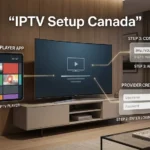

IPTV setup in Canada is short once three things are in place, and impossible until they are. You need a player app that runs on your device, credentials issued by your provider, and the server address entered exactly as it was sent to you. Most guides open with a numbered list of settings paths and never mention that the paths differ by device, by app, and by app version.
This guide covers what does not change — the three prerequisites and where each value goes — and points to the device guide that covers the rest. If IPTV itself is new to you, start with what IPTV is.
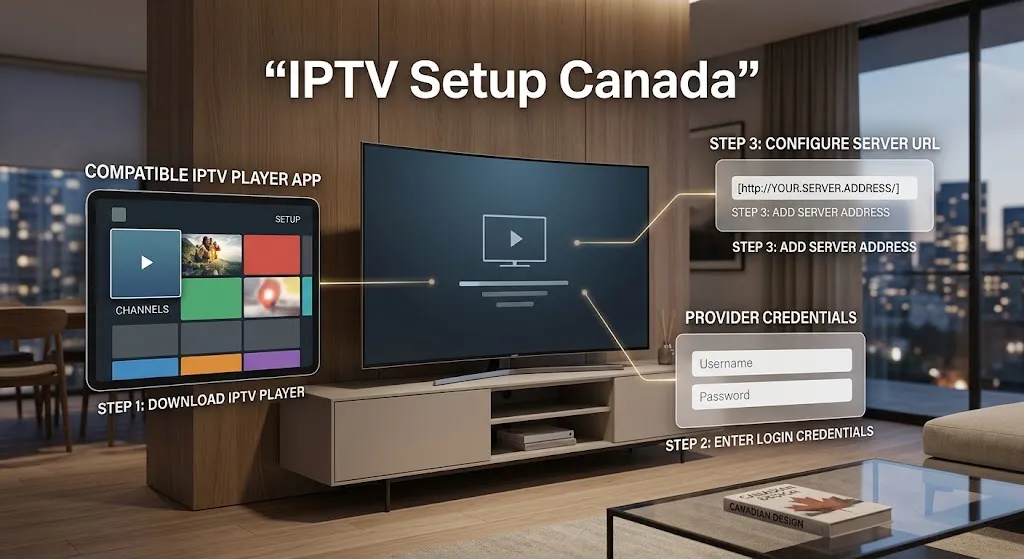
Quick answer: IPTV setup in Canada needs a player app installed on your device, credentials from your provider in either M3U or Xtream Codes format, and the server address typed exactly as issued — including whether it begins with
httporhttpsand any port number. Install the app first. Credentials do nothing without one.
What You Need Before You Start
IPTV setup works on most internet-connected devices, but which players you can install differs sharply between them. Confirm all three prerequisites before opening any app.
1. A player app. IPTV has no built-in interface. Your credentials are data; a player is what turns them into a channel list. Which player you can install depends entirely on your device, and that is the part worth settling first. Our comparison of the best IPTV app in Canada covers the field.
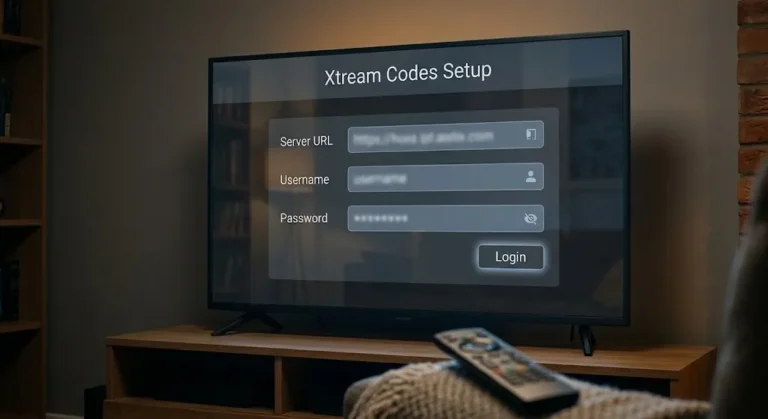
2. Credentials from your provider. You will receive either an M3U URL — a single long link — or Xtream Codes: a server address, a username, and a password as three separate values. Know which you have before you start, because they go into different screens. Our explainer on what Xtream Codes are covers what each field does, and the Xtream Codes setup guide covers entering them and confirming they worked.
3. The server address, exactly as issued. Not approximately. The next section explains why a single character matters.
Key takeaway: install the player first, identify your credential type, and copy the address precisely. Everything else follows.
Why the Server Address Has to Be Exact
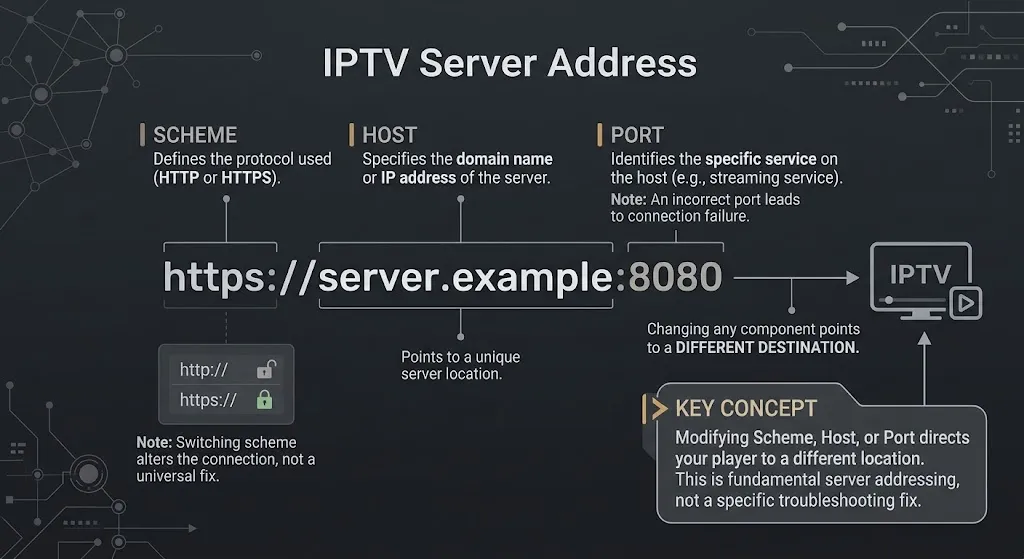
This is the detail that produces most “correct credentials, blank screen” reports, and it is not pedantry — it is how web addresses are defined.
RFC 9110, the HTTP specification, defines the origin of a URL as a triple: scheme, host, and port. Two origins are distinct if they differ in any of the three. The specification is blunt about the schemes in particular: resources reached over https have no shared identity with those reached over http — they are separate namespaces.
Three practical consequences:
http:// and https:// are different destinations. If your provider issued one, the other does not point at the same place. Changing it does not make the connection more secure; it makes it a different address.
A port number is part of the address. If your provider gave you one after a colon, it belongs there. Omitting it sends the request to the scheme’s default — 80 for http, 443 for https — which is usually not where the service is listening.
Autocorrect can change it silently. Some keyboards and clipboards on television devices adjust a pasted address without telling you. After pasting, look at the field and read what is actually in it.
If the app rejects the login rather than failing to play, our guide to IPTV login failed covers reading the error before changing anything.
Show Image
Scheme, host, and port together identify one destination. Change any of them and you are addressing something else.
IPTV Setup Canada on a Firestick
Start here, before any settings path: check which operating system your Fire TV runs. Amazon has begun moving the Fire TV Stick line from Fire OS, which is Android-based, to Vega OS, which is not, and the two behave very differently. Two devices sold under the same name can differ.
Settings → My Fire TV → About shows the model and software version. Our Firestick IPTV setup guide sets out which models run which platform, how to read the version label, and what your options are on each — including the separate matter of Amazon blocking specific applications on Fire OS devices in early 2026. That article is the one to read before you install anything.
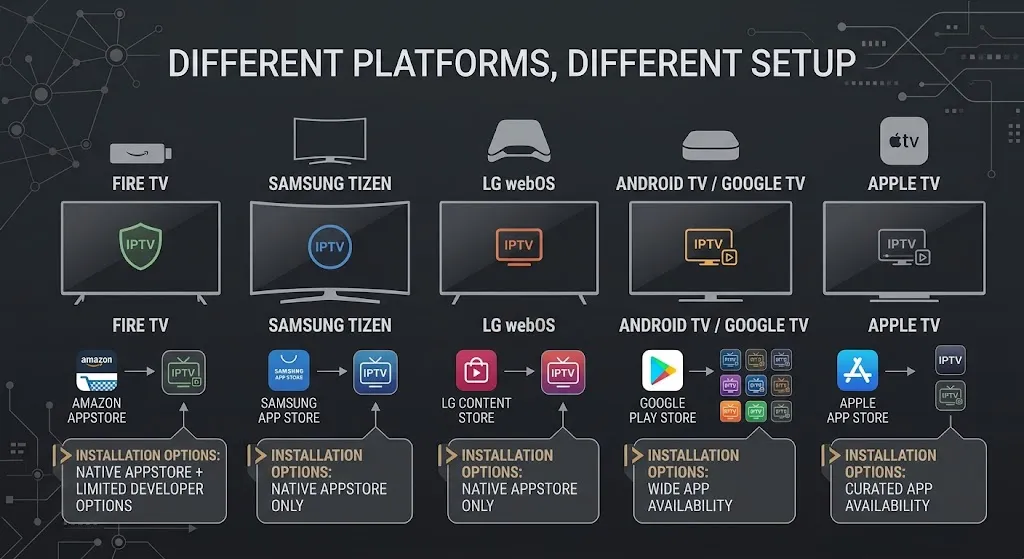
On what we do not publish. Most dedicated IPTV players are not carried in the Canadian Amazon Appstore, and the usual answer online is to install them from outside the store. We do not publish those instructions on this site. What we cover instead is what your device actually supports, what the store offers for it, and how to enter credentials into a player once you have one. If a player is available for your device through its own store, install it from there.
Key takeaway: the Fire TV model decides what is possible. Read the model before following any guide, including ours.
IPTV Setup Canada on a Smart Television
Samsung and LG televisions do not run Android, and this is where expectations transfer badly. A player used on a Firestick may have no equivalent on either platform.
Samsung runs Tizen; LG runs webOS. On both, IPTV players are third-party applications distributed through the platform’s own store, and availability varies by country and by model year. Several of them work differently from what Android users expect — activating by the television’s MAC address, with the playlist registered on the developer’s own web portal rather than typed into the set.
Both platforms have their own guide here, because the differences are substantial enough that a shared section would mislead: Samsung TV IPTV setup and LG TV IPTV setup.
One correction worth carrying: Android package files cannot be installed on Tizen or webOS through developer mode. That advice migrated across from Android instructions and does not apply.
IPTV Setup Canada on Android TV and Apple TV
These are the two platforms where the process is closest to ordinary.
Android TV and Google TV boxes install players directly from the Google Play Store. Open the store, install a player that supports your credential type, then add your playlist or enter your Xtream values. No unusual route is involved.
Apple TV installs players from the tvOS App Store, again without anything unusual. What varies is which players your particular Apple TV can install, because store listings set a minimum tvOS version and your hardware determines how high you can go. Our guide to IPTV on Apple TV traces that chain.
Dedicated set-top boxes are a category of their own. Boxes built for operators connect through a portal address and a registered MAC rather than a player you choose, which changes the setup entirely — covered in MAG box IPTV.
Entering Your Credentials
The screens differ by app; the logic does not.
If you have an M3U URL, choose the playlist or M3U option, paste the single link, name the playlist, and confirm. Loading a channel list typically takes under a minute.
If you have Xtream Codes, choose the credentials or Xtream option — a different screen in every player — and enter the server address, username, and password in their own fields. Entering an M3U link into a server-address field produces a failure with details that are entirely correct.
Then check what actually loaded. Channels are only part of it: a complete load shows the categories, the programme guide, and the on-demand section your subscription is supposed to include. What each partial result means is set out in the Xtream Codes setup guide.
One caution on the M3U link. It can carry your account details inside the address itself, so treat it the way you would treat the password inside it — not something to paste into a forum or a screenshot.
Programme Guide Data
Guide data is a separate feed from your channel list, arriving from its own address on its own refresh cycle. That is why channels can play perfectly beside an empty grid.
On an Xtream connection the provider’s server usually supplies it automatically. On an M3U connection you may need a separate XMLTV address from your provider — a different link from your playlist.
Time zones are where Canadian viewers get caught: the country spans six of them, and an offset that is right in Halifax is four hours wrong in Vancouver. Our guide to IPTV EPG not working covers the offset settings, the Newfoundland half-hour problem, and the identifier mismatches that leave some channels blank.
Speed and Connection
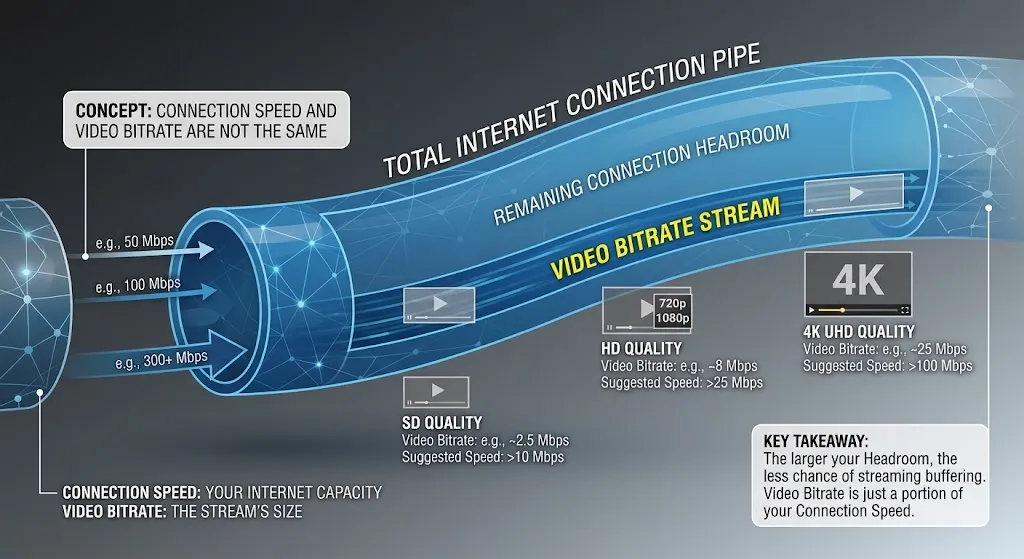
| Stream quality | Minimum | Recommended |
|---|---|---|
| SD (480p) | 5 Mbps | 10 Mbps |
| HD (1080p) | 25 Mbps | 30 Mbps |
| 4K UHD | 50 Mbps | 100 Mbps |
| Multiple simultaneous streams | Add the minimum per stream | Wired connection |
These are connection speeds for a single stream, not video bitrates. The gap is deliberate headroom: a 1080p stream typically carries 8–12 Mbps of video, and the extra capacity absorbs congestion without interrupting playback. Confusing the two is the most common reason people report buffering on a connection they were told was fast enough.
A wired Ethernet connection removes one variable entirely and is worth using where the device supports it. Bell Fibe, Rogers Ignite, and most Telus Optik plans in urban Canadian markets exceed these minimums comfortably; rural connections on older infrastructure are more likely to struggle at higher quality settings.
If Setup Does Not Work
Work through these in order before contacting anyone.
Read the address again. Scheme, host, port — compare character by character against what your provider sent.
Check the credential type. M3U in the playlist screen, Xtream values in the credentials screen. The wrong screen produces a convincing failure.
Confirm the subscription is active and that no other device in the house is holding your allowed connection. Connection limits produce failures that look random.
Test in a second player using the same credentials. If it works there, the first app is the suspect. If it fails in both, the problem follows the account.
Beyond that, the symptom decides where to go: a refused login is IPTV login failed · an empty guide beside working channels is IPTV EPG not working · a blank picture is IPTV black screen · an empty on-demand section is IPTV VOD not working · and buffering, channel outages, or a service that fails entirely belong in our complete IPTV fix guide for Canada.
On VPNs specifically: they are frequently recommended as a setup fix and rarely are one. A VPN changes the route your traffic takes; it does not correct an address, extend a subscription, or free an occupied connection. What it does and does not do is set out in do I need a VPN for IPTV?
Legal Note: This guide covers configuring IPTV player applications only. IPTV Concepts does not sell, recommend, or endorse any IPTV subscription service, and does not publish installation routes outside official app stores. Always ensure your use of any streaming service complies with Canadian copyright law. See our disclaimer for full details.
Bottom Line
IPTV setup in Canada comes down to three things and one habit. The three: a player your device can actually install, credentials in the format your provider issued, and the server address entered exactly as sent. The habit: check the model before following any guide, because what is possible on a Fire OS Firestick, a Vega stick, a Samsung Tizen set, and an Apple TV are four different answers.
If something loads but not everything, that is usually your subscription’s scope rather than a mistake. If nothing loads at all, read the error before changing settings. And if you are still choosing hardware, our best IPTV device in Canada guide compares the field. Anything unanswered is welcome through our contact page.
Sources
- RFC 9110: HTTP Semantics — IETF. The definition of a URL origin as scheme, host, and port, and the separate namespaces of
httpandhttps. Accessed September 2026. - RFC 3986: URI Generic Syntax — IETF. The port subcomponent and scheme default ports. Accessed September 2026.
- CRTC — Canadian broadband availability and internet traffic management framework. Accessed September 2026.