
Xtream codes setup is a two-minute job that most Canadian viewers get right on the first attempt. The harder question comes about thirty seconds later, when channels appear but the program guide is blank, or the movie section is empty, or half the categories you were promised are missing.
Many setup guides stop once the login is submitted, which leaves you with no way to tell a partial result from a complete one. This guide covers the entry, then spends most of its length on reading what came back. For the wider walkthrough across devices, see our IPTV setup guide for Canada.
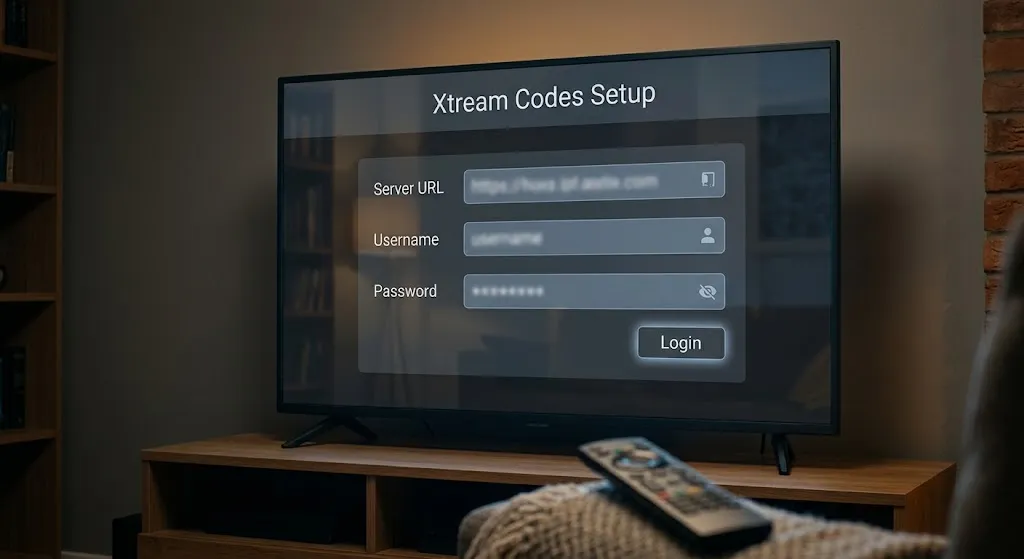
Entering the values is the short part. Reading the result is where most of the work sits.
Quick answer: Enter the server URL, username, and password exactly as your provider issued them, then check what loaded against what your subscription is supposed to include. Live channels with an empty program guide, or missing categories, are usually a service-side matter rather than a typing error—and retyping correct details will not change either one.
What You Need Before You Start
Three values and a player. Nothing else.
The Three Values, and Where They Come From
Your provider issues a server URL, a username, and a password, normally in a welcome email or an account dashboard. They belong to your account, they are issued to you, and they are the only credentials this article deals with. Our explainer on what each of the three values actually is covers the terminology, including why the term describes a convention rather than a published standard.
Two details about the address are worth getting right before you type anything. The server URL may include a port number after the host, separated by a colon, and it may specify http or https. Both are part of the address rather than decoration: the URI standard defines the port as a component of a URL’s authority, and a scheme carries its own default port when none is given. Copy the address whole, exactly as sent.
If Your Provider Only Sent a Playlist Link
Some services issue a playlist URL and nothing else, while your player asks for three separate fields.
Ask your provider for the Xtream details. Most services issue both formats and will send the second on request. That is the beginning and end of our advice here.
We do not publish methods for pulling credentials out of a playlist link, a provider’s own app, or network traffic, and we would suggest treating any page that does with caution. Credentials come from the service that issued them. If yours will not supply them, that is a support question for the provider, not a technical puzzle to solve at your end.
Where the Three Fields Live on Each Kind of Device
Compressed on purpose — the pattern is nearly identical everywhere, and the depth belongs in the device guides.
Streaming Sticks and Android TV Boxes
Dedicated players on Android TV, Google TV, and Fire OS generally open with a choice between adding a playlist and logging in with credentials. Choose the credentials option and you get the three fields, usually with a fourth for a name of your choosing.
TiviMate is the common example on Canadian Fire Sticks and Android boxes. Its Google Play listing states support for M3U, Xtream Codes, and Stalker Portal formats and notes that the app is built for Android TV and remote-control navigation rather than touch devices. The TiviMate review covers where it runs and where it does not, and the Firestick IPTV setup guide covers the device side.
Other players present the same three fields under slightly different labels. If you want to compare them before committing, our comparison of IPTV apps for Canadian viewers is the place for that decision.
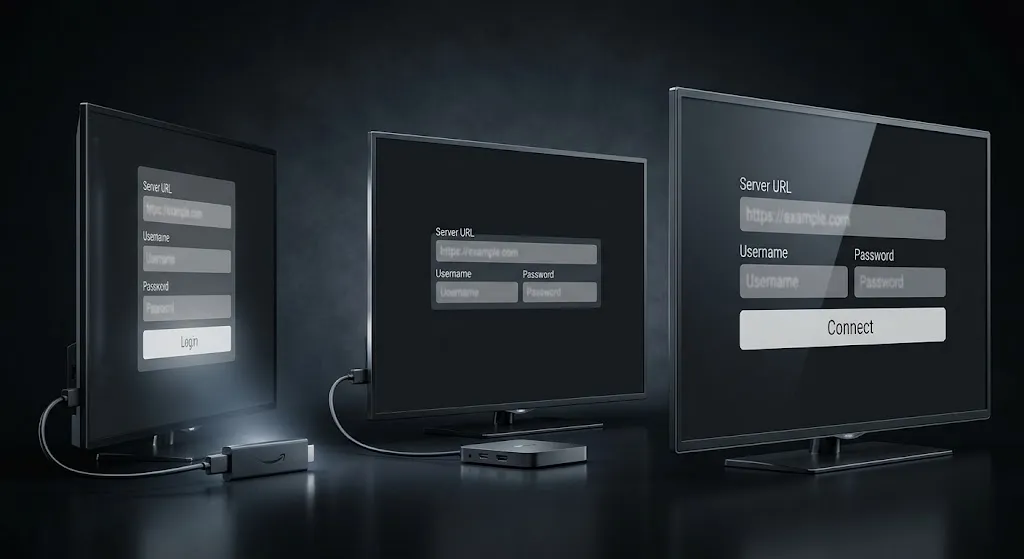
Smart TVs — an App Question, Not an Operating System Question
This is the section that saves the most time, because the usual framing is wrong.
Whether the three fields appear on a Samsung or an LG television has nothing to do with Tizen or webOS. Players on these platforms are third-party applications submitted by independent sellers: LG’s own developer documentation describes an ecosystem where individual and corporate sellers submit apps, LG tests and approves them, and the approved app then appears in the LG Apps store—which LG notes is accessible in 36 countries and 17 languages.
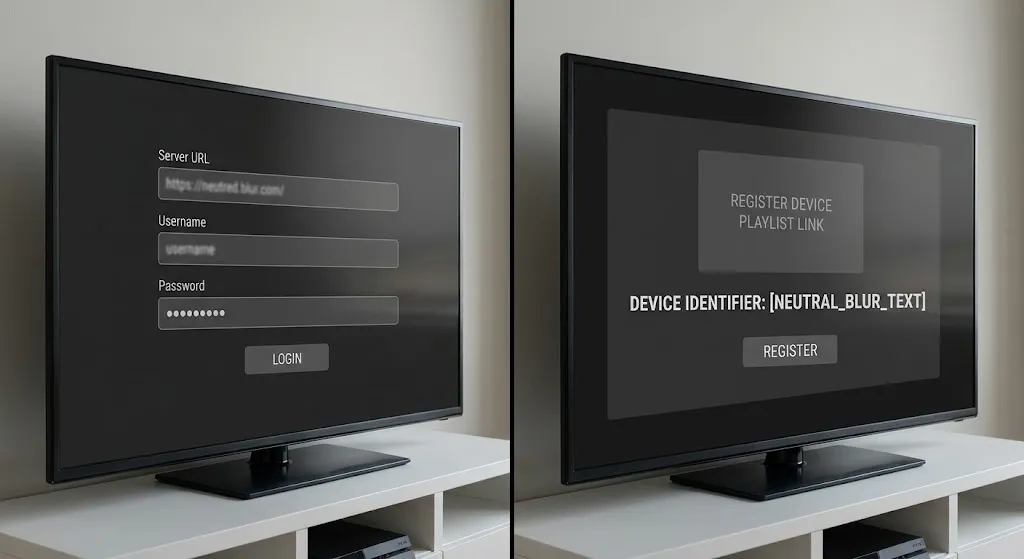
Two consequences follow. First, what a login screen offers is decided by whoever built that app, so two players on the same television can work in completely different ways — one taking credentials directly, another expecting a playlist registered to the set’s MAC address on the developer’s own web portal. Second, which apps you can install varies by country and model year. Our Samsung TV and LG TV setup guides go through checking what your set actually carries.
So the question to ask is never whether your television supports Xtream Codes. It is whether the app you installed offers the fields.
Phones, Tablets and Desktops
Mobile and desktop players follow the same pattern with more room on screen. Note that some large-screen players are explicitly not built for phones—TiviMate’s listing says so directly—so a player that works well on your box may not be the one to install on your phone.
How to Tell the Xtream Codes Setup Actually Worked
Here is the part almost nothing on the web covers and the reason this article exists.
What a Complete Load Looks Like
A successful setup loads the services your subscription is supposed to include. That qualifier matters: not every subscription includes on-demand content, and not every one supplies program guide data. Judging your setup against a checklist that does not match what you bought produces false alarms.
So before assessing anything, check what your plan actually covers. Then look for those things specifically.
Where a subscription does include them, a complete load typically shows live channels organized into named categories, a program guide populated across the grid rather than showing only what is on now, and an on-demand section with titles in it. If all of that appears, you are finished.
If some of it appears and some does not, the table below is the fastest way to work out whose side the gap sits on.
| What you see | What it usually indicates | Whose side | What to do |
|---|---|---|---|
| Channels, categories, guide and on-demand all present | Complete load | — | Nothing |
| Channels load, programme guide empty or thin | Guide data is a separate feed | Usually the service | Check whether your plan includes guide data before changing settings |
| Some categories missing | Plan scope, or the service exposes fewer categories through this method | Usually the service | Compare against what you purchased |
| Live works, on-demand section empty | Plan may not include on-demand | Usually the service | Confirm with your provider |
| Nothing loads; login refused | Authentication failure | Either | Diagnose the error before retyping |
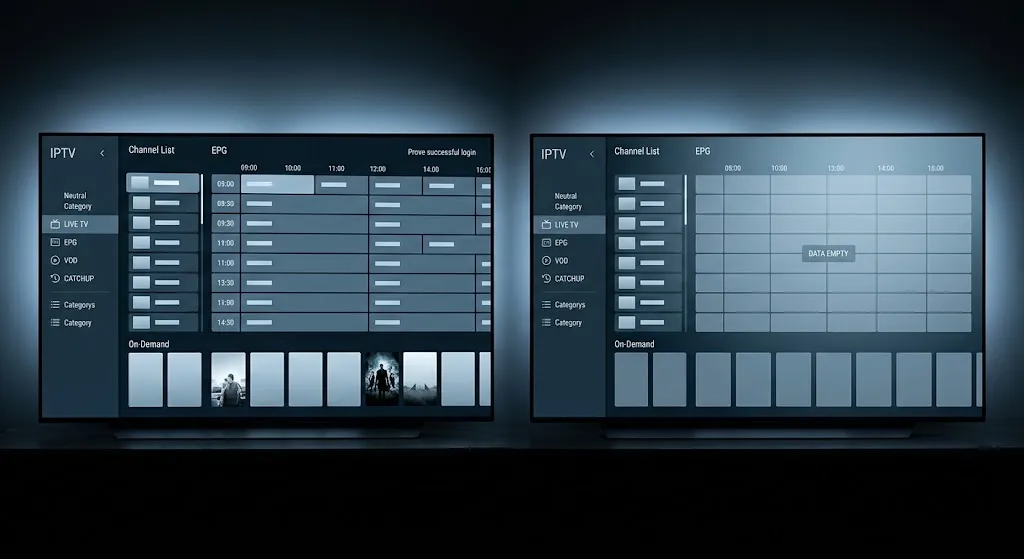
Two results that look like failure and are not. Only one of these is a setup problem.
Channels Load but the Programme Guide Is Empty
This is the most misread outcome of all, and it sends people back to retype details that were never wrong.
The channel list and the program guide are different things arriving by different routes. A player fetches the guide as its own feed—TiviMate’s listing treats the TV guide as a distinct feature rather than part of the playlist—and a login that succeeded perfectly can produce a full channel list beside an empty grid.
Common reasons: your plan does not include guide data, the service supplies it from a separate address you have not entered, or the feed is temporarily unreachable. None of these is fixed by changing your password. If the guide is included in your plan and still will not populate, our guide to IPTV EPG not working takes it from there.
Some categories are missing.
Compare the categories you can see against the ones your plan lists. A gap is usually scope rather than fault—subscriptions are sold in tiers, and the tier decides what the server returns to your account.
There is one setup-side possibility worth ruling out first: some players hide categories with no visible channels, and some let you filter groups during setup and then forget you did. Check the player’s group or playlist settings before contacting anyone.
Live TV Works but On-Demand Is Empty
Same reasoning, one step further. On-demand libraries are a separate part of what a service offers, and plenty of subscriptions do not include them at all.
If your plan does include on-demand and the section is empty, ask your provider whether it is exposed through the credential method you are using. The answer is occasionally that it is not and that is a service configuration matter rather than something to solve on your device.
Nothing Loads at All
If the login itself is refused, stop before you change anything. The wording of the error and how long it took to appear both carry information, and working through them in order is faster than guessing. Our guide to IPTV login failed sets out how to read it.
When Your Player Wants a Playlist Link Instead
Some players accept only a playlist URL and offer no credential fields at all — general-purpose media players in particular.
If you hold Xtream credentials and your player wants a playlist, ask your provider for the M3U playlist URL they officially supply. Most issue both. That is the whole answer, and it is a support message rather than a technical exercise.
One caution once you have it. A playlist link can carry your account details inside the address itself, which means sharing it—in a forum post, a screenshot, or a message to a stranger offering to help—shares more than a channel list. Treat the link the way you would treat the password inside it.
This article covers player configuration only. IPTV Concepts does not sell or endorse any subscription service and does not publish credentials of any kind. See our disclaimer for the limits of what any of this represents.
Bottom Line
Four things to take away:
- Xtream codes setup is three values from your provider, entered into a player that offers the fields—the values come from the service that issued them and nowhere else
- A successful setup loads the services your subscription is supposed to include, so check what you bought before judging what appeared
- An empty programme guide or an empty on-demand section beside a working channel list is usually the service, not your typing
- Whether the three fields appear at all is a question about the app you installed, never about the television or the operating system underneath it
If the login is refused rather than partial, start with IPTV login failed. For the wider device-by-device walkthrough, return to our IPTV setup guide for Canada. If anything here needs correcting, our contact page is open.
Sources
- TiviMate IPTV Player — Google Play. Supported playlist formats, the TV guide as a separate feature, and the stated device scope. Accessed 30 August 2026.
- App Ecosystem—webOS TV Developer, LG: Third-party seller submission and approval and the countries and languages LG Apps covers. Accessed 30 August 2026.
- RFC 3986: Uniform Resource Identifier (URI): Generic Syntax — IETF. The port as a component of a URL’s authority and scheme default ports. Accessed 30 August 2026.