
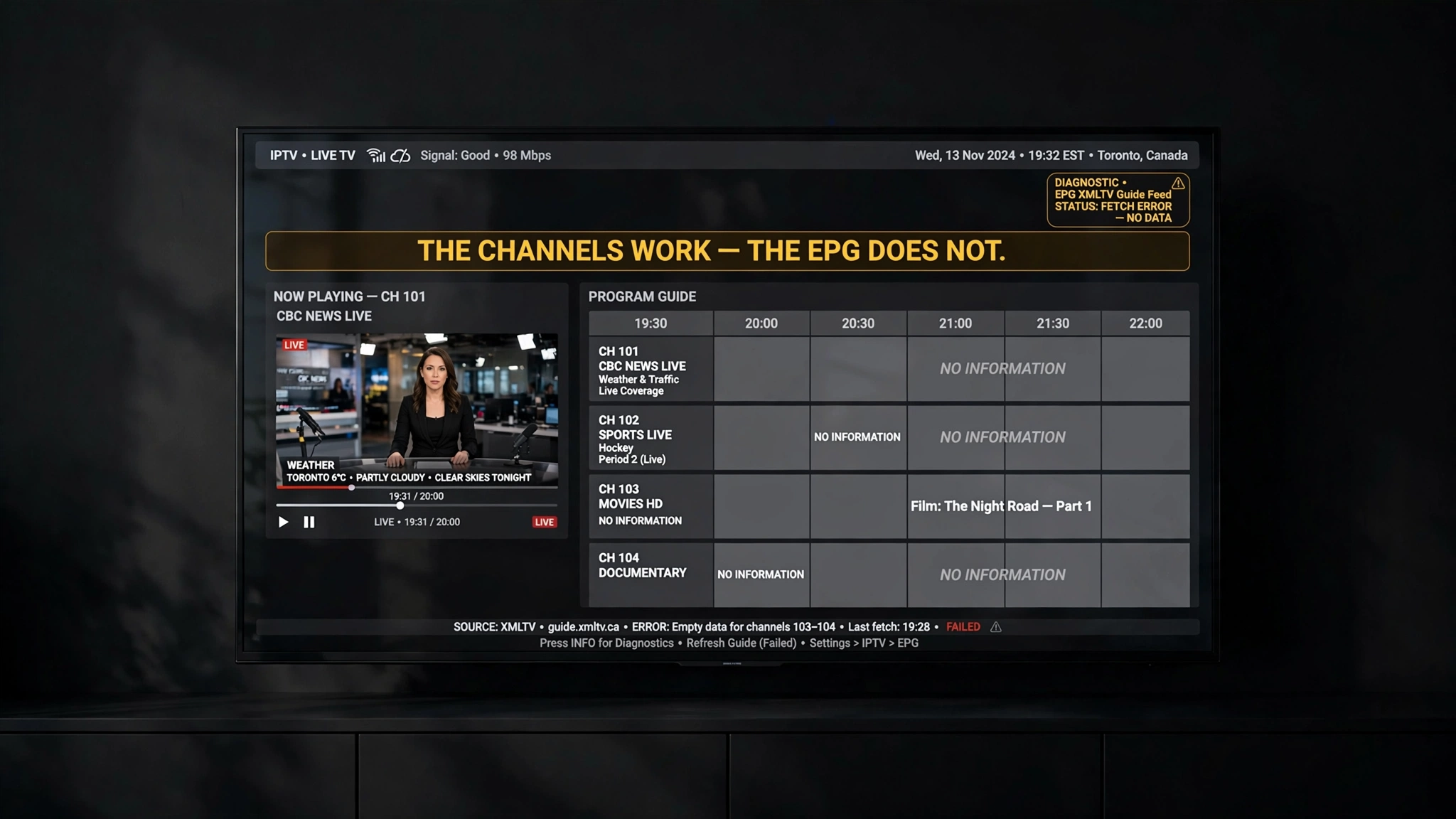
Your channels play fine. You switch between them without a stutter. Then you open the programme guide and find a wall of empty cells — or worse, a schedule confidently telling you a hockey game starts at 1 a.m. IPTV EPG not working is one of those faults where almost no one looks in the right place for the fix because the guide is not part of your video stream. It arrives separately, from a different place, on its own schedule.
That separation is the whole key to fixing it. This guide sorts the five distinct failures behind a broken guide in the order worth checking, including the time-zone section Canadian viewers need most. For symptoms beyond the guide, our complete IPTV fix guide for Canada covers the wider picture.
Reviewed for accuracy: August 2026.
Quick answer: A broken EPG almost never means a broken subscription. Programme guide data travels as a separate XMLTV feed, independent of your video streams, which is why channels keep playing while the guide is still empty. The five real causes are a missing or expired guide URL, a source the player cannot reach, channel identifiers that do not match between playlist and guide, a time-zone offset set wrong, and a stale cache holding old data.
IPTV EPG Not Working While Channels Keep Playing
Your IPTV service delivers two things over two different paths. The video streams come from one set of servers. The programme guide arrives as an XMLTV file — a structured schedule document — and is usually downloaded from a separate address on its own refresh cycle.
Nothing links the health of one to the other. The guide feed can go down entirely while every channel streams in perfect 1080p, and the reverse happens too. Understanding the situation is what stops people wasting an afternoon reinstalling apps and re-entering credentials when the video path was never the problem.
This symptom is one link in a longer chain, and how IPTV actually works traces the full route from provider to screen if you want the wider context. You can find definitions for XMLTV and the other terms used here in our IPTV glossary.
Which Symptom Do You Have?
Guide problems look similar and have entirely unique causes. Find yours here first.
| What you see | Likely cause | Section |
|---|---|---|
| Every channel says “No Information” | No guide source, or the source is unreachable | Every Channel Says “No Information” |
| Some channels have a guide, others do not | Channel identifiers not matching | Some Channels Have a Guide |
| Guide loads but times are wrong | Time-zone offset | The Times Are Wrong |
| Worked before, stopped recently | Stale cache, or the provider changed the feed | The Guide Stopped Working |
| Loads sometimes, fails other times | Feed timing out under load | When It Is Not Your Problem |
Work down from your symptom rather than through every solution in order. Most guide problems resolve in one section.
Every Channel Says “No Information”
A completely empty guide almost always means your player has no usable guide source — either none was ever set, or the one that is set cannot be reached.
Where Your Guide Data Comes From
How you connected determines where the guide should be coming from, and this scenario catches out a lot of people.
On an Xtream Codes connection, the provider’s server normally supplies the guide source automatically. You enter a portal URL, username, and password, and the guide arrives as part of that relationship. If the guide is empty on an Xtream connection, the provider’s panel may not be serving guide data at all.
On an M3U connection, the situation is different. An M3U playlist can carry references that point to guide data — an attribute naming a source andtvg-id values identifying each channel. What it does not contain is the programme schedule itself. The actual listings live in a separate XMLTV file, and if no source URL has been entered in your player, there is nothing for it to download.
So the first question is simply: is there a guide URL in your player’s settings at all? Open the playlist or EPG settings and look. If the field is empty, your answer is to ask your provider for the XMLTV URL – which is a different address from your playlist link.
browser. Test the URL in a browser.
This single test separates a source problem from a player problem, and it takes ten seconds.
Copy your EPG URL and paste it into a browser address bar on a phone or computer. A working source returns XML data — a wall of tags including <channel id="..."> entries. It will look like raw code, which is exactly right.
If instead you receive a 404 error, a blank page, a login screen, or a timeout, the source is the problem. No amount of adjusting settings in your player will fix a feed that is not there. Please contact your provider for a current URL, as these can expire and change.
If the file loads correctly in the browser but your guide is still empty, the problem is on the player side — continue below.
Linking the Source to Your Playlist
The right URL does nothing if the player hasn’t connected it to the playlist you’re actually watching. Several players assign the guide source per playlist rather than globally, so a URL entered somewhere in settings may not be attached to anything.
In Tivimate, for example, the EPG source lives under the playlist itself rather than in a general EPG menu — you select the playlist and then its EPG sources. Menu names and paths differ between players and change between versions, so check your app’s playlist settings rather than following a path from a guide written for a different version. Our comparison of the best IPTV app for Canadian viewers covers how the main players handle these settings.
After adding a source, force a refresh rather than waiting. Most players have an explicit update option, and most will not fetch new guide data on their own for hours.
Some channels have a guide; others do not.
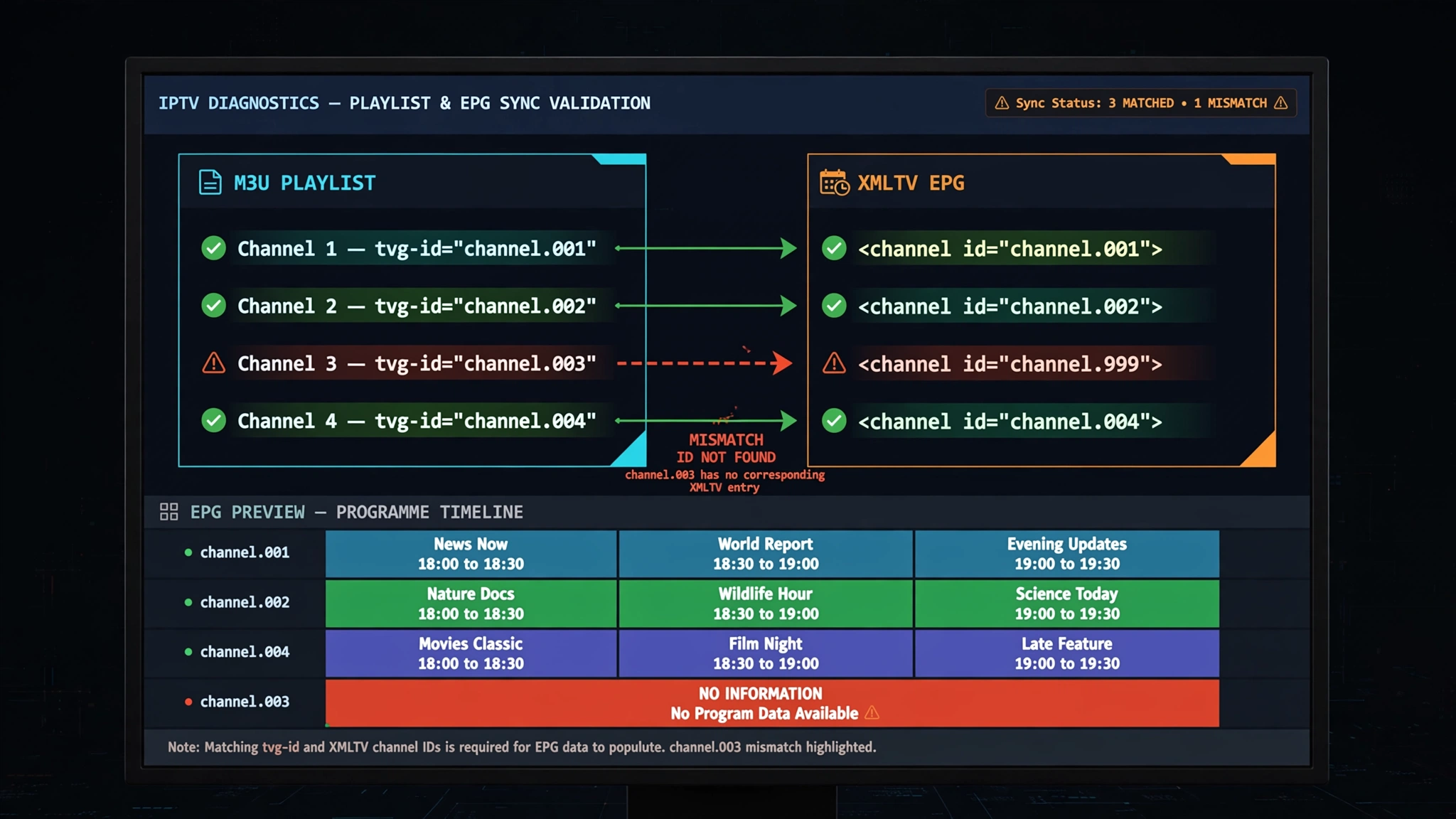
A partially filled guide is a different problem entirely, and it points somewhere very specific.
How Channel Matching Works
Your playlist gives each channel an identifier — the tvg-id value. Your XMLTV file gives each schedule entry a matching identifier in its <channel id="..."> field. The player fills the guide by matching one against the other.
When they match, the schedule appears. When they do not — whether due to a spelling difference, a suffix, or a different naming convention — the player has no way to connect that channel to its listings, and the cell remains empty. Everything else fills in normally, which is why the failure looks so arbitrary from the sofa.
This issue happens most often when a playlist and a guide come from different sources, but it also happens within a single provider whose playlist and guide were generated by different systems.
What You Can Fix and What the Provider Must
For a handful of channels, some players let you assign the guide source manually per channel, matching them by hand. That is workable for five channels and impractical for fifty.
Beyond that, the issue is a provider-side fix. Please contact them and describe the issue precisely: the playlisttvg-id values do not match the channel IDs in the XMLTV file for these specific channels. That phrasing tells a competent provider exactly what to regenerate. Vague reports of “the guide is broken” tend to produce vague answers.
The Guide Loads but the Times Are Wrong
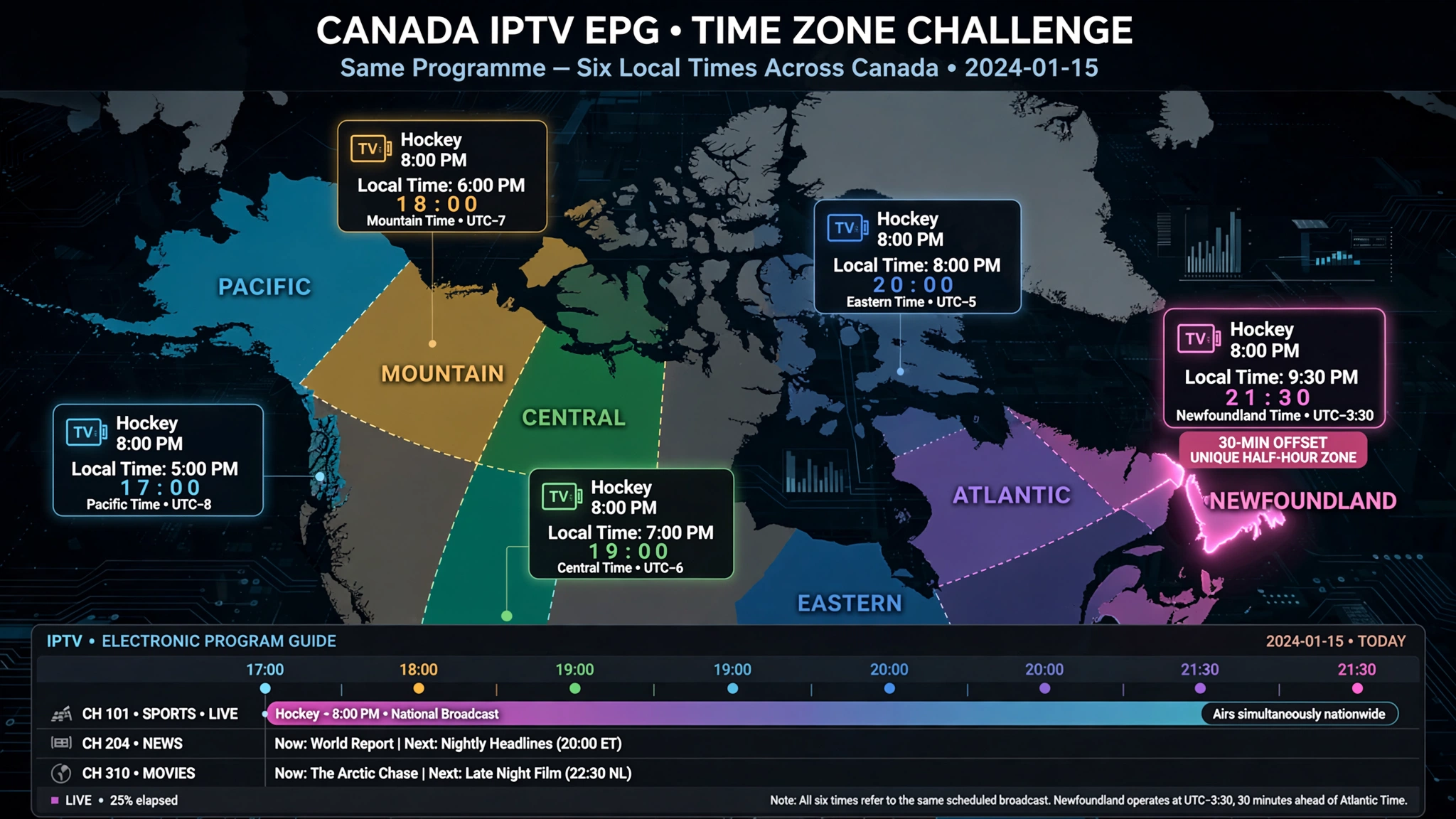
Every programme is listed, every description is there, and everything is shifted by hours. This is the most fixable problem in the article and the one that is explained most poorly elsewhere.
Why XMLTV Stores Everything in UTC
XMLTV timestamps can carry an explicit UTC offset—a value such as +0000 or +0300 appended to the time—and where no offset is given, UTC is assumed. Many feeds publish UTC-based timestamps for exactly that reason. Your player then converts those times for display, using either your device’s system clock and time-zone setting or its internal offset value. The XMLTV format documentation sets out how these timestamps are structured.
If either is wrong, the entire guide shifts uniformly. A programme you know starts at 8 p.m.; showing up at 1 a.m. tells you the conversion is off by five hours — which is a useful diagnostic, because that number points directly at what needs correcting.
Canadian Time Zones — Getting the Offset Right
Here is what almost every guide on this topic misses. Advice written for a single-time-zone audience gives one number and moves on. Canada spans six time zones, as National Research Council Canada documents, and a value that fixes the guide in Halifax leaves it four hours wrong in Vancouver.
| Time zone | Standard (UTC) | Daylight (UTC) | Where |
|---|---|---|---|
| Newfoundland | −3:30 | −2:30 | Most of Newfoundland and Labrador |
| Atlantic | −4 | −3 | Nova Scotia, New Brunswick, PEI |
| Eastern | −5 | −4 | Ontario, Quebec |
| Central | −6 | −5 | Manitoba, parts of Ontario |
| Mountain | −7 | −6 | Alberta |
| Pacific | −8 | −7 | British Columbia |
The table covers the standard pattern. Canadian timekeeping has more exceptions than most countries — Yukon has stayed on a fixed offset year-round since 2020, and Nunavut alone spans three zones — so confirm your own province’s current practice rather than assuming your neighbour’s setting applies.
Two complications catch Canadian viewers most often.
Saskatchewan mostly does not change clocks. Most of the province stays on Central Standard Time year-round while its neighbours shift, although areas around Lloydminster follow Mountain Time and do observe the change. An offset that works in Winnipeg in July will be an hour out in Regina.
Daylight time moves the target twice a year. If your guide was accurate in January and drifted by an hour in March, nothing broke — the clocks changed and something in the chain did not follow. This is the most common reason a guide that was fine suddenly stops working.
The Newfoundland Half-Hour Problem
Newfoundland sits at UTC−3:30, one of the few half-hour offsets in the world, and it creates a difficulty no IPTV guide seems to have written about.
Many players offer their EPG offset only in whole-hour increments. Where that is the case, a viewer in St John’s cannot express −3:30 in the app at all: −3 leaves the guide half an hour early, and −4 leaves it half an hour late. Some players do support finer adjustment, so please verify yours before assuming.
Where a player only accepts whole hours, that field cannot represent −3:30 directly. If your player inherits the device’s system time, the practical route is to set the streaming device’s own time zone to Newfoundland – operating systems handle the half-hour correctly – and leave the player’s offset at zero. Whether a given player defers to the system clock varies, so test rather than assume. Adjusting both at once is what produces guides that end up ninety minutes wrong.
Where to Change the Offset
The setting exists in most players under a name like Time Offset, EPG Shift, or Time Zone, usually within EPG or playlist settings. Exact paths and labels vary by player and change between versions, so search your app’s settings rather than following a path written for a different build.
The reliable order is as follows: fix the device’s system time zone first; set it to update automatically if that option exists; then set the player’s offset to zero and check. Only if the guide is still wrong should you adjust the offset — and then do so in single-hour steps, testing against a programme with a real start time you know.
The Guide Stopped Working After Being Fine
A guide that worked and then failed usually has one of two causes, and they are easy to tell apart.
Clearing the Cache Safely
Players store downloaded guide data locally. When that stored copy becomes stale or corrupted, new data may not display even though the download succeeded.
On Android TV, Google TV, or a Fire OS device, the option lives in the device settings under applications: locate your IPTV player, choose clear cache, then reopen the app and force a guide refresh.
One warning worth heeding. ‘Clear cache’ and ‘clear data’ are different operations that sit next to each other in the same menu. Clearing the cache removes temporary files. Clearing data can reset the app entirely, taking your playlists, credentials, and favourites with it. Note down your playlist URL and login details before touching either in case you select the wrong ones.
When the Provider Changed the Feed
Guide URLs are not permanent. Providers migrate servers, retire old addresses, and reorganise their panels — and they do not always announce these changes.
If the guide stopped on a specific date, and clearing the cache changed nothing, test the URL in a browser as described above. A source that used to work and now returns an error has been retired. Ask your provider for the current address rather than assuming your setup broke.
EPG on Samsung and LG Smart TVs
Guide data works differently on Tizen and webOS, and the standard advice does not always translate.
Several IPTV players on these platforms activate through the television’s MAC address, with your playlist registered on the player’s own web portal rather than entered on the TV. In that case, your guide source is usually set in that same portal, not in the on-screen app. Searching the TV’s settings for an EPG field can be fruitless simply because the field is elsewhere.
The tests above still apply — check that a guide URL exists, open it in a browser, and confirm the identifiers match. Only the location of the setting changes. Our platform guides cover where each one keeps things: Samsung TV IPTV setup and LG TV IPTV setup.
One further note for LG owners specifically. If your player is registered against a MAC address and you have switched between Wi-Fi and Ethernet, the television may now be presenting a different identifier than the one your playlist was registered against, which can leave both the channel list and the guide empty at once. That is a registration problem rather than a guide problem, and the LG article covers it.
When It Is Not Your Problem
Some guide failures cannot be fixed from your end, and recognising them can save you hours.
The feed times out under load. Large XMLTV files take real time to download, and a provider’s guide server under strain during peak hours may not deliver before your player stops responding. The signature is a guide that refreshes successfully at odd hours and fails in the evening. Some players allow a longer EPG timeout, which can help.
The provider is not serving guide data. If the URL returns nothing in a browser, if the same credentials show no guide in a second player app, and if the field was never populated on an Xtream connection, the data is missing. No setting on your device can change that.
Testing in a second app is the cleanest way to confirm. Enter the same credentials in a different player. If the guide is empty there too, the problem is entirely upstream of your device.
When you contact your provider, be specific: state whether the guide is empty on all channels or some, whether the EPG URL loads in a browser, and when it last worked. Providers field this complaint constantly, and a precise report gets a faster answer than a general one.
Your Guide, Your Next Step
| Your situation | What it means | Do this |
|---|---|---|
| EPG field empty in settings | No source configured | Request the XMLTV URL from your provider |
| URL fails to load in a browser | The source expired or unreachable | Request a current URL |
| URL loads, but the guide still empty | Source not linked to the playlist | Attach it to the playlist, then force a refresh |
| Some channels empty | Identifiers not matching | Map manually for a few, or ask the provider to regenerate |
| Times shifted uniformly | Time-zone conversion | Fix the device time zone first, then the player offset |
| Worked until recently | Stale cache or a changed feed | Clear cache, then test the URL |
| Fails only at peak hours | Feed timing out | Increase the EPG timeout if available |
| Guide and channels both empty | Not a guide problem | Check credentials and playlists first |
If channels are malfunctioning, consult the complete IPTV fix guide for Canada; an empty guide with failing channels indicates a different issue than one with functioning channels. Setting up from scratch is covered in our IPTV setup guide for Canada.
The one thing worth carrying away: the guide is a separate feed with separate failure modes. Check that a source exists, open it in a browser, and fix the time zone on the device before using the app. Those three steps resolve most cases. Anything still unexplained is welcome through our contact page.
Sources
- National Research Council Canada — Canadian time zones and daylight saving time — accessed August 2026
- XMLTV project documentation — XMLTV file format and structure. Accessed August 2026