
Most LG TV IPTV setup guides start at the same place: open the content store, search for the app, and install it. Then you search — and it is not there. Or it installs, you register your playlist, and the TV shows nothing — with no error message worth reading. Both are common on LG TVs in Canada, and both have specific causes that most setup guides never mention.
LG runs webOS, its own operating system, with rules that differ from Fire TV, from Android TV, and in a few important ways from Samsung’s Tizen as well. This guide covers what webOS allows, where LG hides the settings that decide it, and the one mistake that quietly breaks activation. For the general process that applies across every device, our complete IPTV setup guide for Canada covers that process.
Reviewed for accuracy: August 2026.
Show Image: LG’s platform has its own rules — including one setting that changes what your store shows you.
Can LG TVs Run IPTV? The Short Answer
Yes, it works on LG Smart TVs that run webOS. Two conditions decide whether it works. Your TV needs to run webOS rather than LG’s earlier smart platform, and a compatible IPTV player needs to be available in the LG Content Store for your model and region. If both are met, setup is straightforward — though LG’s MAC address handling causes a failure that looks like a broken app when it is not. If no player appears, casting from a phone or adding a streaming device both work.
Longer than the usual answer, because the honest version has conditions. LG TVs make excellent IPTV screens. What varies is what your particular set can install, and LG gives you more visibility into why than Samsung does.
webOS Is Not Android — What That Changes
Fire TV and Android TV devices are built on Android, which is why APK files and tools like Downloader exist for them. LG TVs run webOS, an entirely different operating system. Its applications are packaged for that platform rather than for Android, as LG’s own developer documentation sets out, and the two formats are not interchangeable.
What This Means for Installation
The practical consequence: installing Android APK files is not the app-installation path on an LG TV. There is no downloader equivalent and no unknown-sources toggle like those described in Firestick guides. An IPTV player needs to be available through the LG Content Store for your TV.
The Developer Mode Claim You Will See
This point is worth stating directly, because several guides currently circulating describe sideloading Android APKs onto LG TVs through Developer Mode, and at least one instructs readers to “enable installation from unknown sources” — a setting that belongs to Android, not webOS. That advice has migrated across from Android TV instructions. Following it will not produce a working IPTV player on an LG TV.
The distinction that matters: LG TVs do not lack app installation — they lack the Android installation route. Apps install normally from the Content Store. The question is what your model and region can see in it.
LG’s own support documentation describes the installation path plainly: sign in to your LG account, use the search icon, select the app, and install. That is the supported route. We define the terms used here in our IPTV glossary.
Which LG TVs Support IPTV Apps
LG moved its smart TVs to webOS in the mid-2010s, replacing the earlier NetCast platform and the smart platforms that preceded it.
| Model era | Platform | IPTV app compatibility |
|---|---|---|
| Earlier LG Smart TV platforms | NetCast and other earlier platforms | Current webOS apps should not be assumed to work |
| webOS models | webOS | Depends on the app, the model, and the region |
Notice what the second row does not promise. Running webOS makes a TV eligible for current IPTV players. It does not guarantee any particular player is available for it, and newer webOS versions generally carry a wider selection than older ones.
Checking Your Model and webOS Version
Press Home, open Settings, then General, then About This TV. The screen shows your model number and webOS version.
Older pre-webOS sets are not a dead end. They need one of the two alternative routes covered further down.
LG TV IPTV Setup and the Content Store
Start here, because this step determines everything that follows.
- Press Home on the remote and open the LG Content Store.
- Select the search icon and type the player name exactly — searching “IPTV” alone returns unrelated results.
- If it appears, select it and install. You will generally need to be signed in to an LG account.
- If nothing relevant appears, your content store does not carry it for your model and region.
When Nothing Appears in Your Search
That last outcome is a real result, not a search failure. LG’s catalogue is not identical worldwide, and it is thinner on webOS than on Android TV — an honest point that even some app developers acknowledge. Search several player names before concluding your TV has no options, since availability differs between them.
For how the available players compare, see our guide to the best IPTV app for Canadian viewers.
What LG Services’ Country Actually Does
Here is the setting that separates LG from Samsung and the one most guides either ignore or present carelessly.
LG TVs have a region setting under Settings → General → Location → LG Services Country. It tells the TV which LG service region it belongs to, and it influences what the Content Store presents. Several IPTV guides present changing it as a straightforward trick for reaching apps unavailable in your country. That framing omits everything a reader should weigh first.
What Changing It May Affect
- Your LG account session. Switching regions can sign you out, requiring you to sign in again — and account behaviour across regions is not always seamless.
- Region-specific services. Content and services provisioned for Canada, including LG’s own channel offerings, may stop appearing or behave differently once the TV identifies as another region.
- Terms of service. LG’s services are provisioned by region, so changing the service region may have implications under the terms applicable to your account and location.
And one thing worth being clear about: changing the region does not guarantee that a specific app becomes available. Availability depends on the app, the model, and the region together — a player absent from your Canadian catalogue may be equally absent from another or may exist in a version that does not support your TV.
We are documenting this setting because it exists and readers will encounter it, usually in guides that mention none of the above. We are not recommending it. If a compatible player is not available for your TV, the two routes below are more predictable and carry none of these questions.
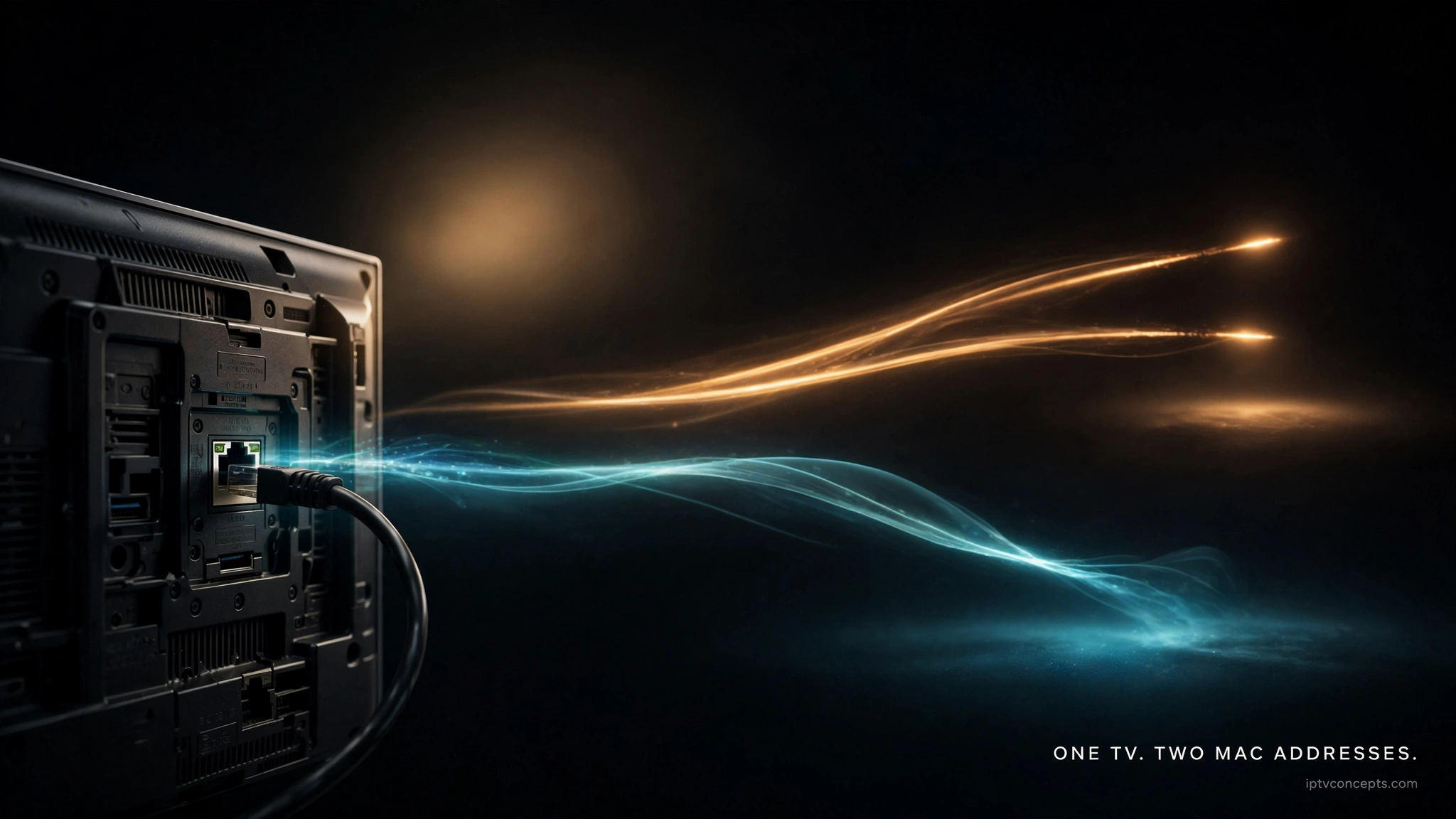
Show Image Two addresses one activation — and picking the wrong one fails silently.
The MAC Address Mistake
Several IPTV players on webOS activate the same way Samsung’s do: the app displays your TV’s MAC address, and you register your playlist against that identifier on the player’s web portal from a phone or computer.
Here is where LG owners get caught. Your TV has more than one MAC address — one for the Wi-Fi adapter and one for the wired Ethernet port. They are different identifiers on the same television.
Register the Wi-Fi address, then plug in an Ethernet cable for a more stable 4K stream, and the TV is now presenting an identifier your playlist is not registered against. The app opens. The channel list is empty. Nothing announces what went wrong, and it looks identical to a bad subscription or a broken app.
The rule: register the MAC address of the connection you actually stream over. If you switch between Wi-Fi and Ethernet, check whether the player requires the registration to be updated for the new MAC address – this varies between players.
Finding Both Addresses on Your TV
Go to Settings → All Settings → Network, select either Wi-Fi Connection or Wired Connection, and then open Advanced Settings. The MAC address for that interface appears there. Check the one that matches how your TV connects.
Entering Your Credentials
Your provider will have supplied one of two credential formats.
| Credential type | What it gives you |
|---|---|
| M3U | A single playlist URL |
| Xtream Codes | A server URL, a username, and a password |
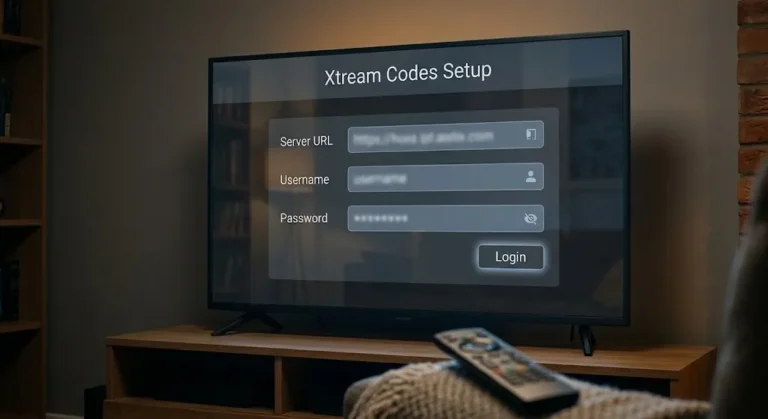
Field names differ between players. Entering an M3U link where Xtream Codes details are expected is among the most common reasons a valid subscription appears to fail. Our IPTV setup guide for Canada covers the entry process and the errors each format tends to produce.
If No Player Is Available
Two routes remain, and neither requires giving up on the television.
Casting From a Phone
Show Image: When the store has nothing, the phone can carry the picture instead.
If the Content Store has nothing suitable, this option is worth trying before buying hardware.
Where supported by the TV and the casting method, phone-based streaming can provide an alternative without installing an IPTV player on webOS at all. You run the player on your phone or tablet, where the app selection is far wider, and send the picture to the television.
What it gives you: no installation, no MAC registration, no region questions, and access to players that webOS does not carry. It can provide an alternative regardless of which IPTV players are available in the Content Store.
What it costs you: your phone stays occupied while you watch, quality depends on your local network rather than the TV’s own connection, and you are navigating with a phone instead of the remote. Support varies by TV model, webOS version, and the casting method and device involved — so confirm it works on your combination before treating it as the solution.
For occasional viewing, this option is often sufficient. For daily use, most people eventually prefer the second option.
Adding an External Device
A streaming device on a spare HDMI input gives you the full range of IPTV players, and your LG TV keeps doing what it does well — displaying the picture. Nothing about the television needs to change, and none of the region or MAC questions above apply.
Our best IPTV device guide for Canada compares the options. One caveat before you buy: not every Fire Stick sold today supports app installation the way older models did, so the model matters – this is covered in Fire Stick IPTV setup.
LG, Samsung, or an external device?
This is a comparison of how the platforms behave, not a ranking.
| Platform | Android APKs | App availability | Setup flexibility | Suits |
|---|---|---|---|---|
| LG webOS | No — IPK packages | Depends on region and model | Lower | Viewers wanting everything on the TV, one remote |
| Samsung Tizen | No | Depends on region and model | Lower | Same, with a different catalogue |
| Fire TV | Fire OS models only* | Depends on app and model | Higher | Viewers wanting installation flexibility |
| Android TV box | Yes | Broad | Highest | Viewers needing maximum app choice |
* Amazon’s newer Vega OS sticks are not Android-based and do not support APK installation – covered in Firestick IPTV setup. The Samsung equivalent of this guide is the Samsung TV IPTV setup, which faces the same catalogue question but with different specifics.
Legal note: this guide covers device and app compatibility only. IPTV Concepts does not sell, recommend, or endorse any IPTV subscription service. The legality of a service is determined by the content source and its distribution rights, not the hardware — see what Canadian law says about IPTV and our disclaimer.
Your LG TV, Your Next Step
| Your situation | What it means | Next step |
|---|---|---|
| webOS TV, player found in store | Both conditions met | Install it, then check the MAC section below before registering |
| webOS TV, no player found | Catalogue limitation, not a TV fault | Try casting, or add a streaming device on a spare HDMI port |
| Earlier NetCast LG TV | Current webOS apps not assumed to work | Casting or a streaming device |
| Player installed, channel list empty | Often the wrong MAC address registered | Check which interface you stream over, re-register |
| Everything loads but playback stutters | Usually beyond the TV | See the fix guide below |
If installation succeeds and playback misbehaves, the cause is usually further along than your television — our complete IPTV fix guide for Canada works through it in order. If you are still getting oriented, what IPTV is covers the fundamentals.
The short version worth keeping: search the store by exact app name, register the MAC address of the connection you actually use, and treat an empty catalogue as information rather than failure. An LG TV that cannot install a player is not an LG TV that cannot show IPTV. Anything we have not covered is welcome through our contact page.
Sources
- LG Support — How to use the LG Content Store with webOS — official installation path. Accessed August 2026
- LG Developer — webOS TV — platform documentation confirming webOS application packaging. Accessed August 2026