
When IPTV keeps disconnecting, the stream does not slow down first. It plays normally, then stops, shows a connection error or drops you back to the channel list, and often comes back when you try again.
That is a different fault from buffering, and it needs a different approach. Instead of working through a long list of fixes, this guide uses one question to narrow things down: when exactly does the drop happen?
Quick answer: A disconnection is a stream that stops, not one that slows. Note when each drop happens. If it happens when someone else starts watching, test your simultaneous connections. If it happens after the TV sits untouched, check sleep settings. Random drops on every channel point to your home network or the app, a drop on one channel points to that channel’s source, and drops while a VPN is on point to the VPN. The timing tells you what to test first; it does not prove the cause.
A Disconnection Is Not Buffering
The two problems are easy to confuse because both interrupt what you are watching. The difference is what happens to the stream.
Stream Stops vs Stream Slows
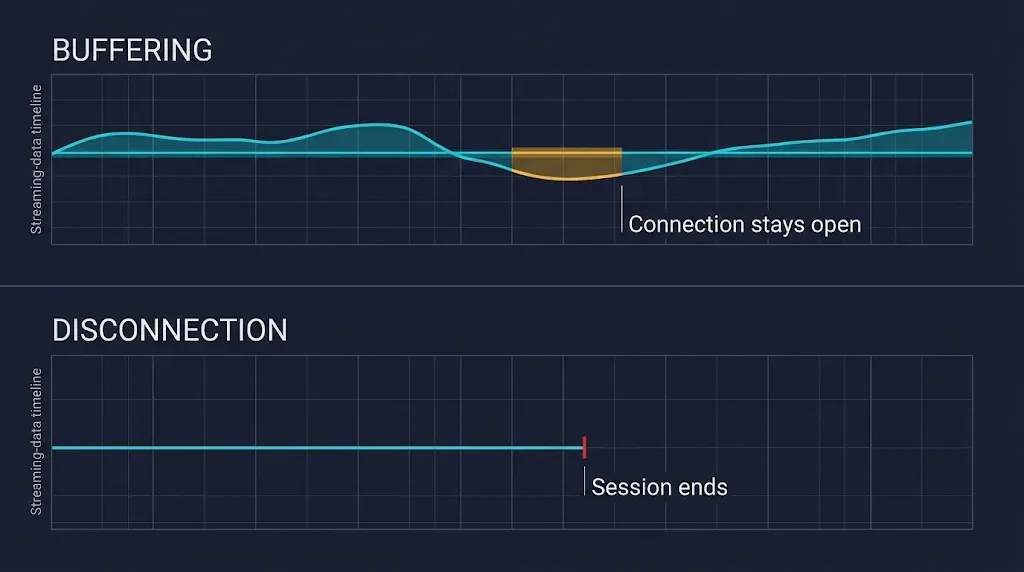
With buffering, the connection to the stream is still there, but data arrives too slowly to keep up, so the picture pauses while the player waits. With a disconnection, the connection itself ends. The player either shows an error, returns to a menu, or sits on a frozen frame that never recovers until you reopen the channel.
If your picture pauses, shows a loading circle and then carries on, you are dealing with buffering, and our guide to IPTV buffering and freezing is the better place to start. This guide covers the stream that ends.
When the App Itself Closes
A third fault sometimes gets described as “disconnecting”: the player app closing or locking up entirely. That is an app or device problem rather than a connection problem, and the buffering and freezing guide covers it under the app locking up.
When IPTV Keeps Disconnecting, Start With the Timing
Most disconnections follow a pattern, even when they feel random. The moment a stream drops is the most useful clue you have, because different causes tend to show up at different moments.
| When it drops | What to test first |
|---|---|
| After a similar length of time each time | Device timers and session behaviour |
| When a second device starts playing | Simultaneous connections |
| After the TV is left untouched | Sleep and power settings |
| At random, on several channels | Home network or the app |
| On one channel only | That channel or its source |
| While a VPN reconnects | VPN tunnel stability |
Read the right-hand column as a starting point, not a verdict. Two different causes can produce the same timing, so the table tells you where to look first rather than what is definitely wrong.
Record the Next Two Disconnections
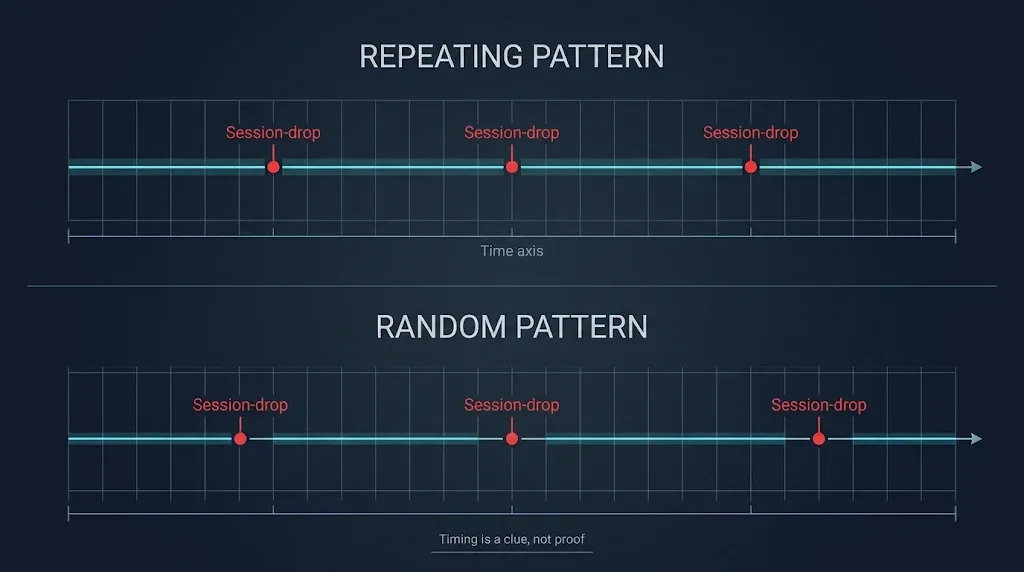
One drop is hard to read. Two drops recorded the same way usually show a pattern. The next time the stream ends, note four things:
- The time, and roughly how long the channel had been playing.
- Whether another device was playing on the same subscription at that moment.
- Whether the internet dropped too. Check whether other apps or devices in the house lost their connection at the same time.
- Whether it was one channel or all of them. After the drop, try a second channel before trying the first one again.
Do the same for the next drop. If both happened after a similar playing time, both while someone else was watching, or both on the same channel, the matching row in the table above is where to begin.
Another Device Is Taking the Connection
If the drops line up with someone else in the house starting to watch, a connection limit is the first thing to test.
How a Connection Cap Can End a Playing Stream
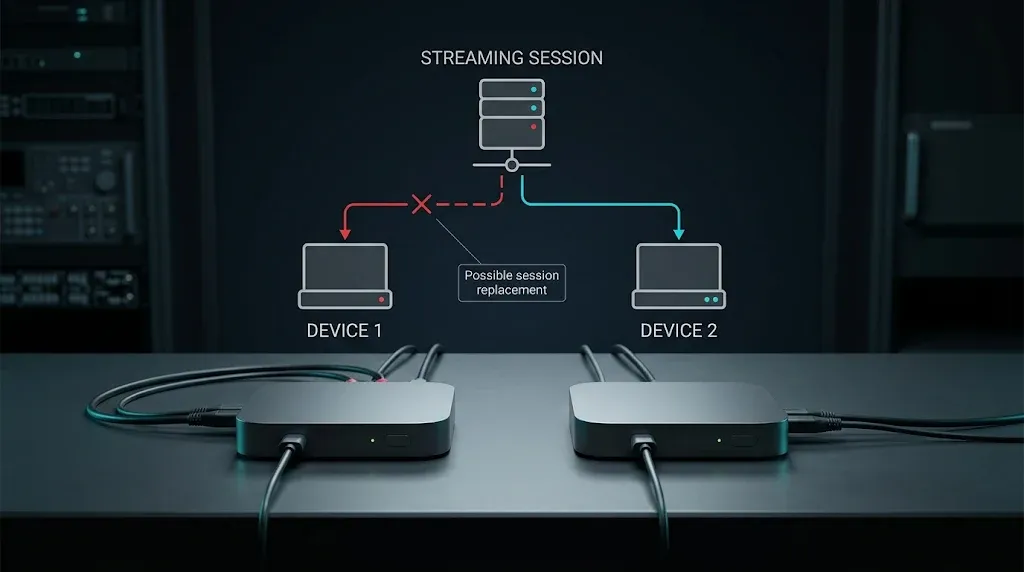
Many IPTV subscriptions allow only a set number of streams at the same time. What happens when that number is exceeded depends on how the provider’s system handles it. In some cases the new device is refused. In others, an existing session may be ended to make room.
If your stream stops shortly after another TV, phone or tablet in the house opens a channel, the second case is worth testing.
The test is simple. Leave only one device playing for an evening. If the drops stop, the limit is the likely factor, and the next step is to check how many simultaneous connections your subscription includes.
Devices That May Still Hold a Connection
A device does not always release its connection the moment someone stops watching. A player left open on a channel in another room, a phone still running the app in the background, or a TV turned off at the screen while its streaming device stays on may all keep a connection in use.
Before concluding that the subscription itself is faulty, close the player fully on every device you are not using.
Not the Same as a Login Refusal
When a connection limit stops a device from signing in at all, the result is a login error rather than a disconnection. That case is covered in IPTV login failed.
Sleep and Power Settings
If the stream is gone when you come back to a TV you left untouched, the device may simply have gone to sleep. A device that has gone to sleep is no longer playing anything, so this looks like a disconnection when you return.
Fire TV: Sleep Settings and Low Power Mode
Amazon describes Low Power Mode as an energy-saving feature on some Fire TV models. It turns on whenever the device enters sleep mode, whether that happens after a period of inactivity or because you put the device to sleep yourself, and it cannot be switched off on devices that include it.
It is a separate setting from Sleep Mode Behaviour, found under Display settings, which controls whether the HDMI signal stays on while the device sleeps.
None of this means Low Power Mode interrupts a channel you are actively watching. What matters for diagnosis is the sleep itself: if your Fire TV goes to sleep while left idle, the stream ends with it. If you are not sure which Fire TV you own or which system it runs, our Firestick IPTV setup guide explains how to check.
Apple TV: Sleep After
According to Apple, Apple TV turns off automatically after a preset period of inactivity. You can change how long it waits in Settings › General › Sleep After.
This setting is about inactivity, so it is relevant when the stream is gone after the TV sat untouched, not when a channel drops while you are using the remote. For more on how Apple TV handles IPTV players, see IPTV on Apple TV.
Android TV and Smart TVs
Android TV devices and smart TVs from different manufacturers have their own screensaver, sleep and energy-saving options, and the menus vary by brand and model.
The pattern to look for is the same: if streams only end after the TV has been left alone, look in the device’s display, power or energy settings for an automatic sleep or idle timer.
Home Network Drops
If the stream ends at random, on any channel, the next place to look is the connection between your device and the internet.
Wi-Fi Drops Versus a Wired Connection
A Wi-Fi connection can drop for a moment because of distance from the router, walls, interference or other devices competing for the same network.
A short drop that other apps barely notice can still end a live stream. If your device has an Ethernet port, connecting it with a cable for a day is one of the simplest tests available: if the disconnections stop, Wi-Fi was the weak link. If a cable is not practical, moving the router closer or testing at a different time of day gives a rougher answer.
Router Restarts and Lost Internet Connections
When the router restarts or the home internet connection drops, every stream in the house ends with it. This is where step three of the recording test helps: if other devices lost their connection at the same moment, the problem is the internet connection itself rather than IPTV.
Your router’s status lights or admin page may show whether the connection was lost. A changed IP address after a router restart is a result of the reconnection, not proof of what caused the drop.
DNS changes are often suggested for this problem. DNS is what lets your device find a server by name when it connects. Once a stream is already playing, a DNS change is unlikely to affect it, so changing DNS is more relevant when channels fail to start than when a running stream drops.
Is a VPN Causing IPTV Disconnects?
If you only see drops while a VPN is on, the VPN is worth testing on its own.
When the Tunnel Reconnects
A VPN sends your traffic through an encrypted connection to a VPN server. If that connection drops and has to reconnect, everything passing through it is interrupted, including a live stream. VPN apps often show when they reconnect, so compare those moments with the times you recorded.
Test Once With the VPN Off
Watch for a session with the VPN switched off. The purpose is purely diagnostic: it tells you whether the disconnections come from the VPN connection or from somewhere else. If the drops stop, the VPN connection is the place to investigate. For a wider look at what a VPN does and does not change for IPTV in Canada, see Do I need a VPN for IPTV?.
When the Problem Is on the Provider’s Side
If your recording test shows that your devices, network and settings are not the pattern, the cause may be outside your home.
Server Load and Session Behaviour
Provider servers can come under heavy load, particularly around major live events, and some services may manage long-running sessions in ways that end a stream after a period of time.
This varies by provider and is not something you can confirm from your side alone. If your drops happen after a similar playing time every time, and device sleep settings are not the explanation, ask your provider whether its service limits session length.
One Channel Failing on Every Device
If a single channel drops on every device in your home while other channels play normally, the issue is most likely that channel’s source rather than your equipment. For channel-specific failures in Canada, including the effect of court-ordered blocking, see IPTV not working in Canada.
Bottom Line
When IPTV keeps disconnecting, the timing is your best diagnostic tool. Record the next two drops: the time, whether another device was playing, whether the internet dropped too, and whether it was one channel or all of them.
Then match the result to the table. Drops when someone else starts watching point to the connection limit. Drops after the TV sits idle point to sleep settings. Random drops on every channel point to your home network. Drops on one channel point to its source, and drops with a VPN on point to the VPN.
Testing one thing at a time takes longer than trying every fix at once, but it tells you what actually changed.
Legal note: this guide covers how IPTV connections behave and how to diagnose interruptions. IPTV Concepts does not sell, recommend or endorse any IPTV subscription service. Whether viewing is lawful depends on the content source and its distribution rights, not on the app or device. See Is IPTV legal in Canada? and our disclaimer.