
An IPTV black screen is one symptom covering two faults that share almost nothing. Every guide on the subject offers the same ranked list of fixes — clear the cache, switch the decoder, restart the router, check the HDMI cable — and about half of those steps are irrelevant to whichever fault you actually have. There is a thirty-second test that tells you which list applies, and almost nobody puts it first.
This guide does. For symptoms beyond a blank picture, our complete IPTV fix guide for Canada covers the wider field.
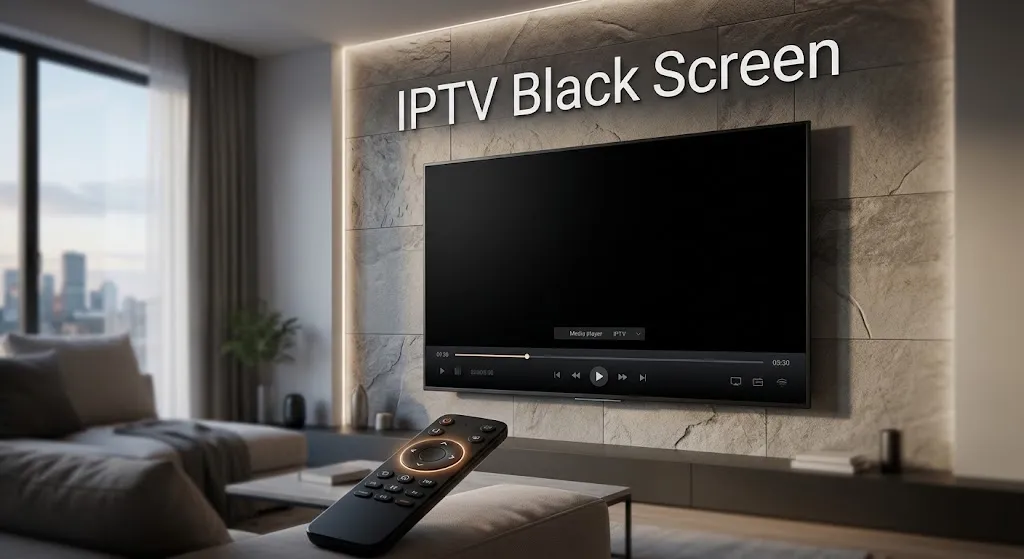
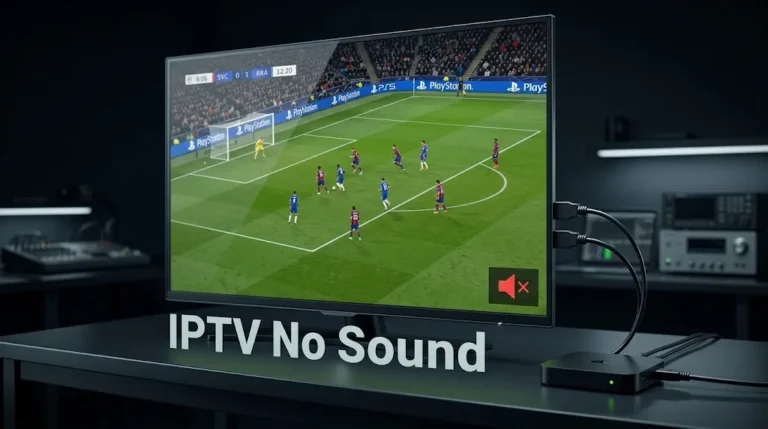
Quick answer: Turn the volume up before changing anything. If you can hear the channel while the screen is black, the stream is arriving and being decoded — the fault is in the video path, and the decoder setting is the place to start. If there is no sound either, nothing is reaching your device, and the checks are entirely different.
One Symptom, Two Different Faults
Turn the Volume Up Before Anything Else
Select a channel, wait for the black screen to appear, and turn the volume up. Listen for dialogue, commentary, or music.
That is the whole test. It costs ten seconds and it splits the problem in half.
What Sound Tells You
Audio playing under a black screen is strong evidence, because audio and video travel together inside the same stream. If one arrived and played, so did the other.
Specifically, hearing sound establishes that your credentials were accepted, the service is responding, the channel’s source feed is live, your network is carrying the data, and your player is decoding at least part of what it received. If any of those had failed, there would be silence too. Terms used here are defined in our IPTV glossary.
What it does not establish is that your device can turn the video half of that stream into a picture. That is a separate operation, performed by different hardware, and it is the only thing left standing.
Silence changes the picture entirely — the stream may never have arrived. Both branches are below. Take the one that matches.
Black Screen With Sound: the Video Path
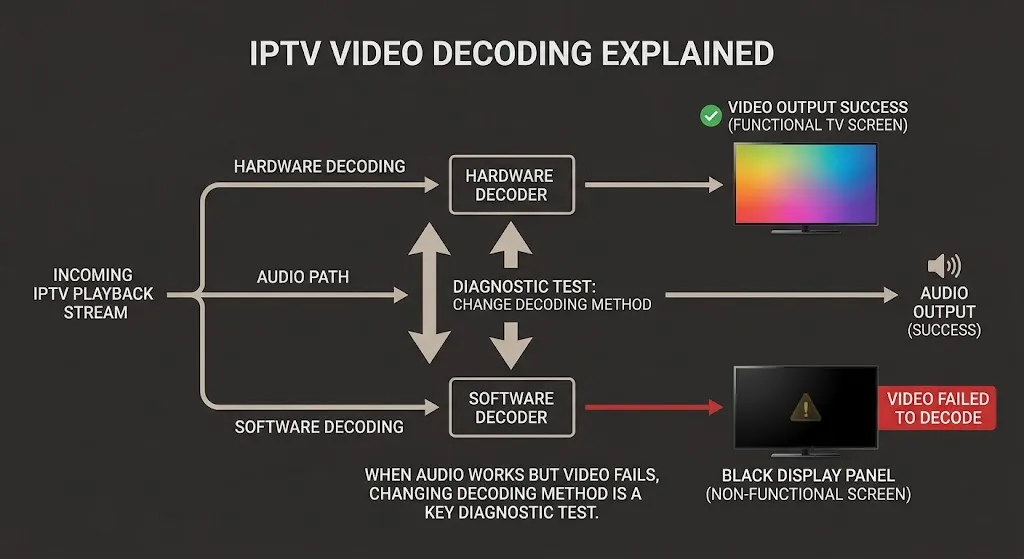
Sound but no picture points at decoding. Three things cause it, in this order.
Hardware and Software Decoding
Most IPTV players let you choose how video is decoded, usually labelled Hardware, Software, or Auto in playback settings.
Hardware decoding hands the work to a dedicated chip in your streaming device — fast, efficient, and limited to what that chip was built to handle. Software decoding does the same work on the general-purpose processor. It is slower and warmer, but it is not bound by the chip’s limits.
When a stream uses something the chip cannot process, hardware decoding produces exactly this symptom: audio continues, video does not. Switching to software decoding is not a ritual. It is a test of whether the chip is the obstacle, and if the picture returns, you have your answer.
The trade-off is real. Software decoding uses more processing power, and on a modest device it can introduce stutter on high-bitrate channels. If it fixes the black screen but the playback is rough, the device is the constraint rather than the setting.
When Only Some Channels Go Black
This is the pattern that confuses people most, and it has a specific explanation.
Codec support is not a yes-or-no property. Amazon’s developer documentation for querying device capabilities shows that an application can ask whether a device supports a given codec at a particular profile, level, frame rate, bitrate, or resolution — because support is defined by all of those together, not by the codec name alone. Amazon’s own tunnelled playback documentation lists named device exceptions even among Fire TV models that support H.264, H.265, and VP9 generally.
So a device that “supports H.265” can still fail on one channel encoded at a profile or bitrate beyond what its chip handles, while every other channel plays. Nothing is broken. The channel is asking for something this device cannot do in hardware.
If software decoding brings that channel back while the others were fine all along, this is what happened. If your device is several years old and the black channels are the newest additions to your line-up, the pattern fits. Our guide to the best IPTV device in Canada covers what current hardware handles.
The HDMI and Display Check
Not every blank picture is software.
A loose HDMI connection, a failing cable, or a resolution the television cannot accept produces a black screen while audio continues over the same cable. Reseat the cable at both ends, try a different port, and if your player or device has a display output setting, drop it one step — from 4K to 1080p, or from 60Hz to 50Hz — and test again.
This is worth ruling out early because it takes a minute and costs nothing. It is also the explanation people reach for last, after an afternoon of app settings.
Does It Work on Your Phone but Not Your TV?
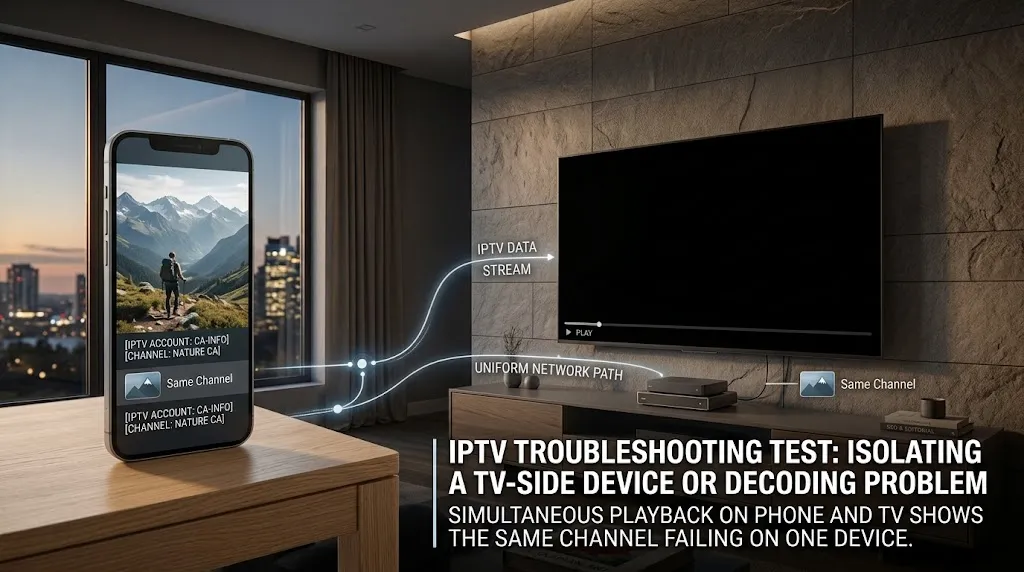
This is the strongest isolation test available, and no page in the current results uses it.
Install a player on your phone, enter the same credentials, and open the same channel that goes black on the television. Our comparison of IPTV apps for Canadian viewers covers players that accept the same credential formats.
If the channel plays on the phone, the account, the subscription, the channel, and the provider are all working. The fault is on the television side — the device, the app on it, or its decoding settings. Everything in the section above applies, and nothing about the service needs investigating.
If the channel is black on the phone too, stop looking at the television. The problem travels with the account, and no setting on either device will change it.
That one comparison replaces most of a troubleshooting list. Do it before you clear a cache.
Black Screen With No Sound at All
Silence alongside a blank picture is a different fault, and it belongs to a different guide for the most part.
The distinction matters because you have no evidence anything arrived. Where sound proved the stream was reaching and decoding, silence proves nothing at all — the channel may be dead at the source, the account may have lapsed, or the connection may have dropped between selecting the channel and playback beginning.
Three checks are worth making before you go further:
Does another channel play? If several do, the failing one has a source problem and there is nothing to fix locally. If none do, the problem is your account or connection, not this channel.
Does the player interface still respond? If the menu works and channels simply refuse to load, the app is running and the streams are not arriving. If the whole screen is black with no interface at all, that is an app or device fault rather than a streaming one.
Was the login accepted? If the app is rejecting credentials rather than failing to play, IPTV login failed covers reading the error properly.
Beyond those three, this is the broad-failure case, and our IPTV not working in Canada guide takes it from there — including the traffic management and blocking questions that account for most sudden, complete failures on Canadian connections.
What Not to Try for an IPTV Black Screen
Two pieces of common advice deserve a caution rather than a repetition.
Disabling browser hardware acceleration. This appears constantly in results for black-screen searches, and it answers a different question. That advice concerns licensed streaming services enforcing content protection in a web browser — the black screen there is deliberate, produced by the platform. It has nothing to do with a player app on a streaming device, and following it will not change anything.
Changing the stream format setting. Switching between MPEG-TS and HLS is sometimes suggested as a black-screen fix. That setting changes how your app requests the stream, not what the stream contains or how your device decodes it. It is worth testing once if a channel fails to load at all, but it does not create decoding capability that is not there. We set out what it does and does not change in stream format: MPEG-TS or HLS.
This article covers player and device diagnostics only. IPTV Concepts does not sell or endorse any subscription service. See our disclaimer for the limits of what any of this represents.
Bottom Line
An IPTV black screen is not one fault, and the volume control tells you which one you have faster than any settings menu.
Sound under a blank picture means the stream arrived and decoded — the video path is the only thing left, and the decoder setting is where to start. Silence means you have no evidence anything arrived, and the questions become account, channel, and connection rather than decoding. The phone test settles which side of the television the problem sits on in under a minute.
One boundary worth keeping. This guide covers a picture that is blank. A picture that plays without sound is the reverse fault with reverse causes. Content that never starts at all is covered in IPTV VOD not working, and anything broader belongs in IPTV not working in Canada. If something here needs correcting, our contact page is open.
Sources
- Tunnel Mode Playback — Amazon Fire TV Developer Documentation. Codec support across Fire TV devices with named per-device limitations. Accessed September 2026.
- Media capability queries — Amazon Developer Documentation. Querying device support for a codec by profile, level, frame rate, bitrate, and resolution. Accessed September 2026.