
IPTV buffering looks like one problem on screen — a spinning wheel and a picture that stops — but it covers several faults that begin in different places. A channel that takes too long to open, a stream that plays for ten minutes and then stalls, and a picture that locks while the sound carries on are three different situations, and the fix for one rarely helps the others.
This guide works through the questions that separate them, so you can tell where the stall begins before you change anything.
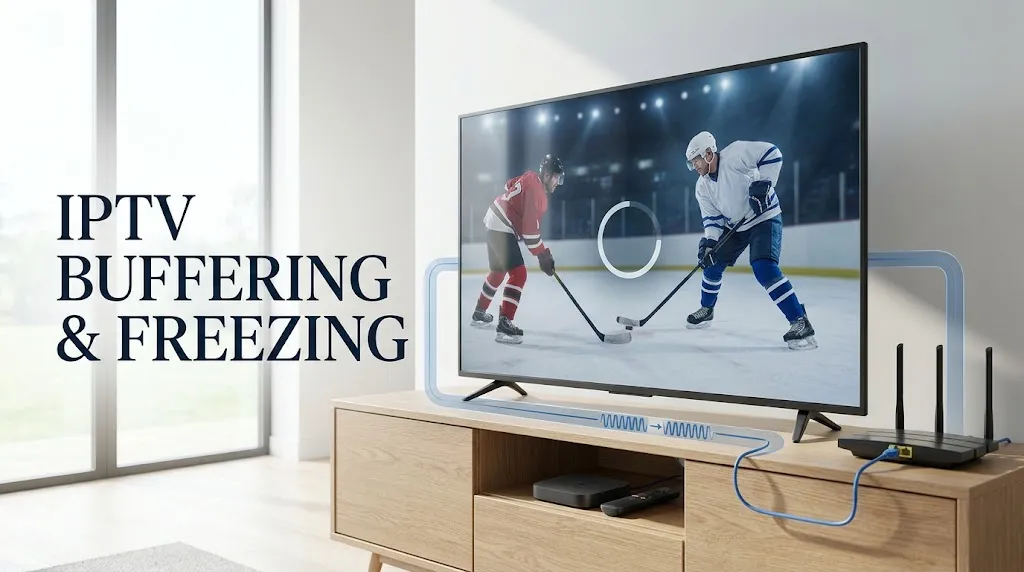
IPTV buffering on a living room television in Canada, with a loading indicator over a paused live stream IPTV buffering is one symptom with several causes. When it happens is the first clue.
Quick answer: Notice when the stall happens and how far it spreads. If a channel is slow to open but plays smoothly once it starts, the delay is in the startup stage, not in delivery during playback. If a stream starts and then keeps stopping, compare a second channel and a second device: one channel failing points to that channel’s source, every channel failing on one device points to that device or its connection, and everything stalling every evening points to network congestion. A frozen picture with the sound still playing is a video playback problem, not buffering.
| What you see | First test | What it narrows down |
|---|---|---|
| A channel takes a long time to open, then plays normally | Open two or three other channels | The startup stage, not ongoing delivery |
| A stream starts, then keeps stopping | Play a second channel on the same device | One source versus your device or connection |
| Only one channel freezes | Open the same channel on another device | That channel’s source |
| Every channel stalls in the evening | Compare a different time of day | Network congestion or traffic management |
| The picture is frozen but the sound continues | Check the player’s decoder setting | Video playback on the device |
| The whole app stops responding | Restart the app, then the device | The app or the device, before the network |
Each test narrows the possibilities. None of them proves the cause on its own.
IPTV Buffering Is Two Different Faults
Buffering means the player has run out of video it is ready to show. Every player holds a short reserve of incoming data ahead of what is on screen. When that reserve empties faster than new data arrives, playback pauses until it refills. The question that matters most is when that happens.
Buffering When a Channel Starts
A delay between selecting a channel and seeing a picture, followed by smooth playback, is a startup problem. Once the stream is running, delivery is keeping up — which is why a faster connection may change very little.
Buffering in the Middle of Playback
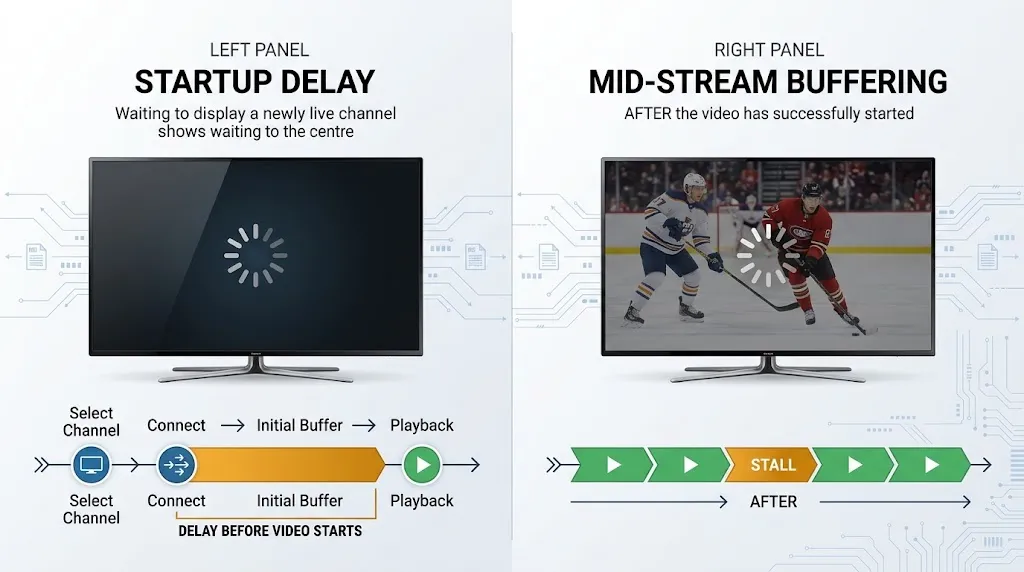
A stream that opens normally and then stops, sometimes repeatedly, means data stopped arriving fast enough after playback began. This is the pattern most people mean by buffering, and it is the one where the location of the fault — the source, your network, or your device — decides what to check.
IPTV channel guide on a television with a loading indicator on a channel that has not yet started playing A channel that is slow to open and a stream that stalls after it starts are different faults.
Why Some Channels Are Slow to Start
Slow startup and buffering are often treated as the same thing. They are not, because several steps can happen before any video reaches the player.
Before Any Video Arrives
Opening a channel can involve the app requesting the stream address from the service, the service checking your account, and the player connecting to the source. A delay at any of these steps holds up the picture even when your connection is fast.
If every channel is slow to open — including channels that play smoothly once started — the delay is more likely in these early steps than in your bandwidth. If the app is rejecting your account rather than slowly opening channels, the symptoms are different; see IPTV login failed.
Filling the Starting Reserve
Once data arrives, the player collects a short reserve before it starts showing the picture. A larger reserve means a slower start but more margin when delivery slows later. A smaller one starts sooner but leaves less room for interruptions. Some players expose this as a buffer size setting, and the default differs between apps.
Why HLS Live Channels Start Behind the Live Edge
For channels delivered as HLS, the protocol itself shapes startup. HLS splits a live stream into short segments listed in a playlist, and RFC 8216, the specification that defines HLS, states that a client should not begin playback with a segment that starts less than three target durations from the end of the playlist. This is one reason an HLS live channel plays slightly behind real time.
It applies to HLS only and does not explain slow startup on every channel. For how HLS and MPEG-TS deliver a stream differently, see stream format: MPEG-TS or HLS.
Buffering Mid-Stream: Which Layer Is Running Short?
When playback starts and then stalls, three comparisons separate the likely causes. Run them in order — each one rules out part of the chain between the source and your screen.
One Channel or Every Channel?
Switch to a different channel on the same device. If the second channel plays without interruption, your device and home connection are delivering video normally, and the problem sits with the first channel’s source. A change at home will not fix that; if it continues, it is worth reporting to the service. If every channel stalls, move to the next question.
One Device or Every Device?
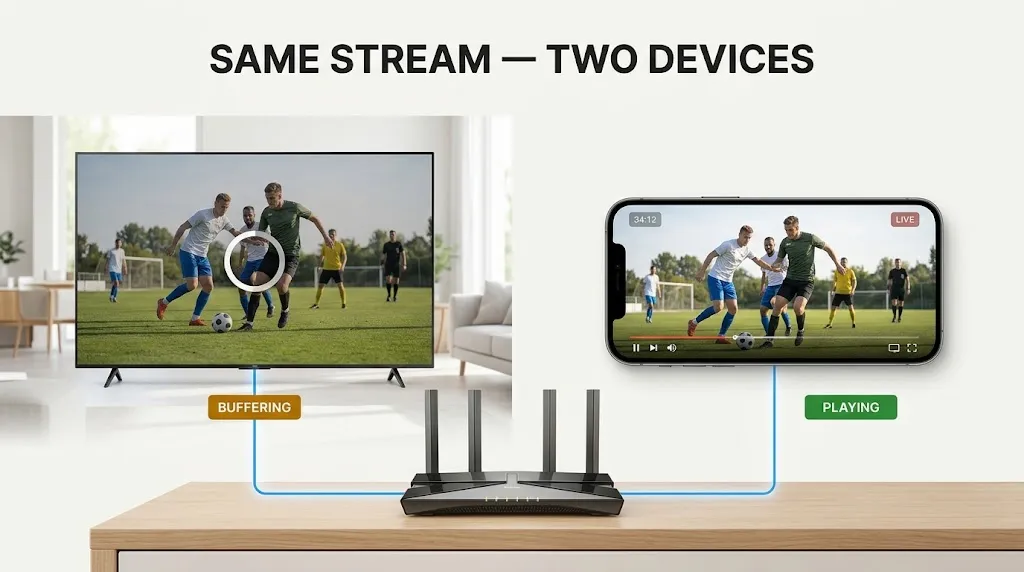
Open the same channel on a second device on the same network, such as a phone. If it plays smoothly there, the original device or its link to the router is the weaker point. If it stalls on both, the issue sits upstream of your devices: your internet connection or the service.
IPTV buffering test with the same channel playing smoothly on a phone while a television behind it shows a stalled stream Playing the same channel on a second device separates a device fault from a connection or service fault.
Every Evening, or at Random?
Buffering that appears mainly at peak hours — especially during live sports — and clears at other times fits network congestion or traffic management rather than a fault in your equipment. That pattern, and how Canadian ISPs manage traffic, is covered in our guide to IPTV not working in Canada. Buffering at random times, unrelated to the hour, points back towards your home network or device.
IPTV Freezing Is Not Always Buffering
People use “freezing” for several different symptoms. What happens to the sound and to the app while the picture is stuck tells you which one you have.
Picture Freezes, Sound Keeps Playing
If the image locks on a single frame while the audio continues normally, data is still arriving — the sound shows it. This is not buffering. The stall is in how the device is handling the video, or, if it happens on one channel only, in that channel’s video. The player’s decoder setting is the first thing to check: switching between hardware and software decoding changes which part of the device processes the picture. If the picture goes fully black rather than frozen, see IPTV black screen.
The Whole App Locks Up
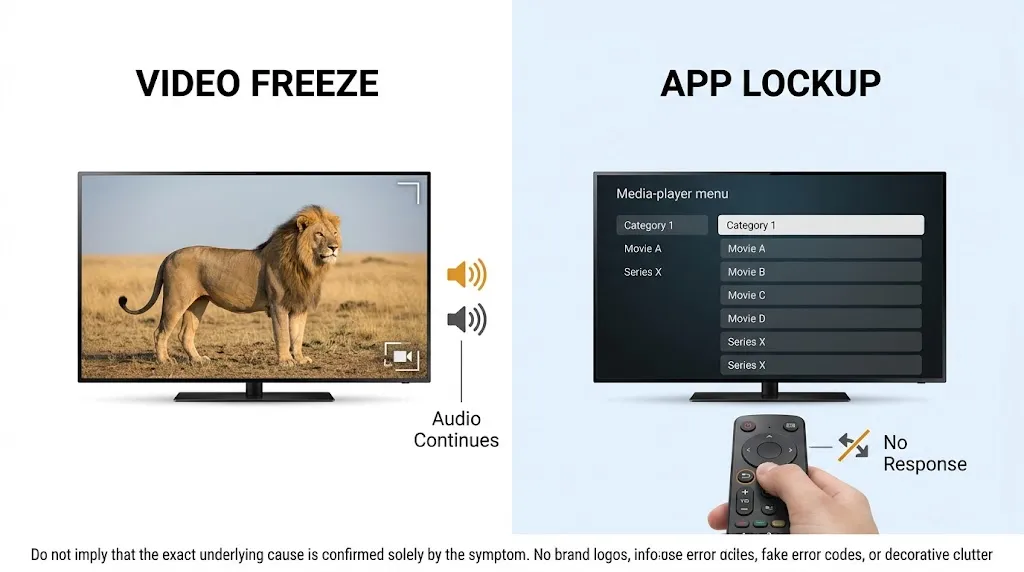
If the picture stops, the sound stops, and the remote does nothing — no menu, no back button — the app or the device has stopped responding, not the stream. Close and reopen the app. If it keeps happening, the app version and the device itself are more likely causes than your connection.
IPTV freezing with a frozen app menu on a television while a hand presses the back button on a remote When the remote stops responding too, the app or device has frozen — not the stream.
The Picture Freezes and Never Recovers
A stall that ends with the player giving up — an error message, a return to the channel list, or a loading indicator that never clears — means the connection to the stream was lost rather than slowed. That is a disconnection, and its causes differ from buffering. Retry the channel once. If it opens again immediately, the loss was brief. If it fails repeatedly, treat it as a service or connection problem and start with the IPTV not working in Canada checks.
What You Can Change on Your Side
Once the comparisons point to your own equipment, these are the changes within your control.
The Connection Between Your Router and Your Device
Wi-Fi is often the least stable link in a home network: distance, walls, and other devices sharing the connection all affect how steadily data arrives. If your streaming device has an Ethernet port, a wired connection to the router removes that variable, and it is the quickest way to test whether Wi-Fi is the weak point. Restarting the router and the device is worth doing once, because it clears temporary faults on both. If the buffering returns, though, the restart has not found the cause.
Player Settings That Affect Buffering
Many IPTV players let you change the buffer size, the decoder, or the stream format. A larger buffer gives the player more margin when delivery slows, at the cost of a slower start. The decoder setting matters when the picture stutters while the connection itself is steady. Changing the stream format can help a channel that fails on one format, but if a stream buffers on both, the format is not the cause. Setting names and menu locations differ between apps; for an overview of how players differ, see our comparison of the best IPTV app in Canada.
Clearing Cache Without Losing Your Login
Clearing an app’s cache removes temporary files the app can rebuild. Android treats these files as disposable: its developer documentation notes that the system may delete cache files on its own when storage runs low. On Fire TV devices running Fire OS, Amazon’s help page places the option under Settings, then Applications, then Manage Installed Applications, where you select the app and clear its cache.
Clearing data — labelled Clear Data or Clear Storage depending on the device — is a different action. It can remove the app’s saved settings, including the playlist or login details you entered, and whether it does depends on how each app stores them. Clear the cache first, and keep your provider details to hand before you clear data.
When the Device Itself Is the Limit
If buffering or stuttering happens on one device only, on every channel and at any hour, while the same channels play smoothly on another device on the same network, the device is the remaining suspect. A device without hardware support for a stream’s video format has to work harder to play it, and that extra load can show up as stutter that looks like buffering. Our guide to the best IPTV device in Canada covers what to look for in a replacement.
Will a VPN Stop IPTV Buffering?
Only in one situation. If your internet provider is managing streaming traffic during busy hours, a VPN can stop that management from identifying the traffic, and buffering may ease. If the cause is anywhere else — the channel’s source, your Wi-Fi, your device, or the service’s servers — a VPN adds an extra step and encryption overhead, and it can make buffering worse rather than better.
Run the comparisons above first. A VPN is a test of one specific cause, not a general fix. For the wider question, see do I need a VPN for IPTV.
What Not to Try for IPTV Buffering
- Switching the stream format back and forth. If a channel buffers on both MPEG-TS and HLS, the format is not the problem, and each switch only restarts the stream.
- Clearing app data before the cache. Data clearing can remove your saved login and playlist; the cache is the lower-risk first step.
- Changing service before diagnosing. If the fault is your Wi-Fi or your device, a different service will buffer in the same way.
- Treating a speed test as the final word. A speed test measures your connection to a test server, not the route to the service’s servers, so a good result does not rule out a delivery problem.
- Restarting on a loop. A restart that helps for an hour has cleared a symptom, not a cause.
Bottom Line
Three scenarios cover most cases:
Channels are slow to open but play smoothly once started — the delay is in the startup stage. Check whether it affects every channel before changing anything on your network.
Streams start and then stall — compare a second channel, then a second device. The result tells you whether to look at the source, the device, or the connection, and whether the evening pattern points to traffic management.
The picture freezes while the sound continues — that is video playback on the device, not buffering. Start with the decoder setting.
Legal note: This guide covers diagnosis and troubleshooting only. IPTV Concepts does not sell, recommend, or endorse any IPTV service. Whether a service is lawful depends on whether it holds the rights to the content it distributes, not on the player or device you use — see is IPTV legal in Canada and our disclaimer.
Sources
- RFC 8216 — HTTP Live Streaming, Internet Engineering Task Force
- Access app-specific files, Android Developers
- Clear App Data and Cache on Fire TV, Amazon