
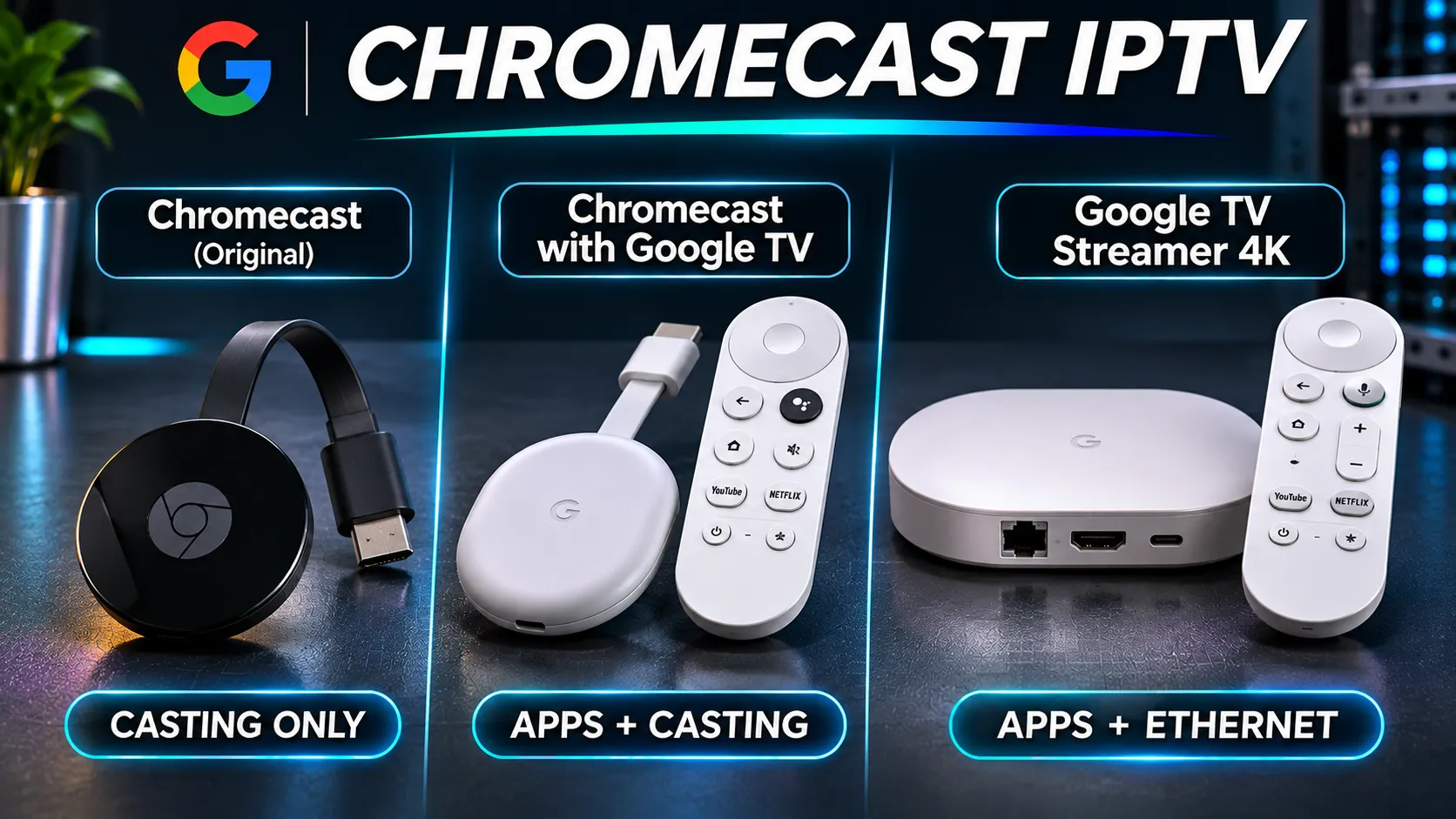
Chromecast IPTV works differently depending on which Chromecast you own, because the name covers several different devices.
Some generations run IPTV apps of their own, others only receive video sent from a phone or computer, and Google has since stopped making the line altogether.
This guide shows how to identify your Chromecast, which way of watching IPTV it supports, and what the discontinuation means for anyone still using one.
Quick Answer IPTV works on Chromecast, but the method depends on the model. A Chromecast with Google TV can run an IPTV player app directly. Older Chromecast models have no apps or remote, so they only receive video cast from a phone, tablet or computer. Google has ended Chromecast production, but that is not the same as existing devices stopping working.
Which Chromecast Do You Have?
The quickest test is the remote. If your Chromecast came with its own remote control and shows a home screen of apps when you switch to it, it is a Chromecast with Google TV.
If it has no remote and shows only a backdrop until you cast something to it, it is an older casting-only model.
Older Chromecast Models (Casting Only)
The original round and puck-shaped Chromecasts, including the 1st, 2nd and 3rd generations and the Chromecast Ultra, have no app store and no remote.
They do one job: they receive video sent to them from another device on the same Wi-Fi network. You cannot install an IPTV player on them. IPTV on these models means casting from a phone, tablet or computer.
Chromecast with Google TV (4K and HD)
The Chromecast with Google TV, released in a 4K version in 2020 and an HD version in 2022, is a different kind of device.
It runs Google TV, comes with a voice remote, and installs apps from Google Play. That means it can run an IPTV player app directly, with no phone involved. It can also still receive casts like the older models.
Google TV Streamer
The Google TV Streamer is the device Google now sells in place of Chromecast. Google’s August 2024 announcement describes it as replacing Chromecast, and says it can connect over Wi-Fi or through a built-in Ethernet port.
It is a set-top box rather than a dongle, and it runs apps from Google Play, so it handles IPTV the same way a Chromecast with Google TV does.
| Device | How IPTV works | Remote | Software support (as listed by Google) |
|---|---|---|---|
| Chromecast (1st gen) | Casting only | No | Support has ended |
| Chromecast (2nd, 3rd gen), Chromecast Ultra | Casting only | No | Listed with firmware versions on Google’s release notes page |
| Chromecast with Google TV (4K) | Installed app or casting | Yes | Minimum guaranteed security support ran to 30 September 2025 |
| Chromecast with Google TV (HD) | Installed app or casting | Yes | Minimum guaranteed security support to 22 September 2027 |
| Google TV Streamer (4K) | Installed app or casting | Yes | Minimum guaranteed security support to 24 September 2029 |
Sources: Google’s Chromecast firmware release notes and Google Nest security update pages, checked 20 November 2026.
How to Use IPTV on Chromecast: Two Different Methods
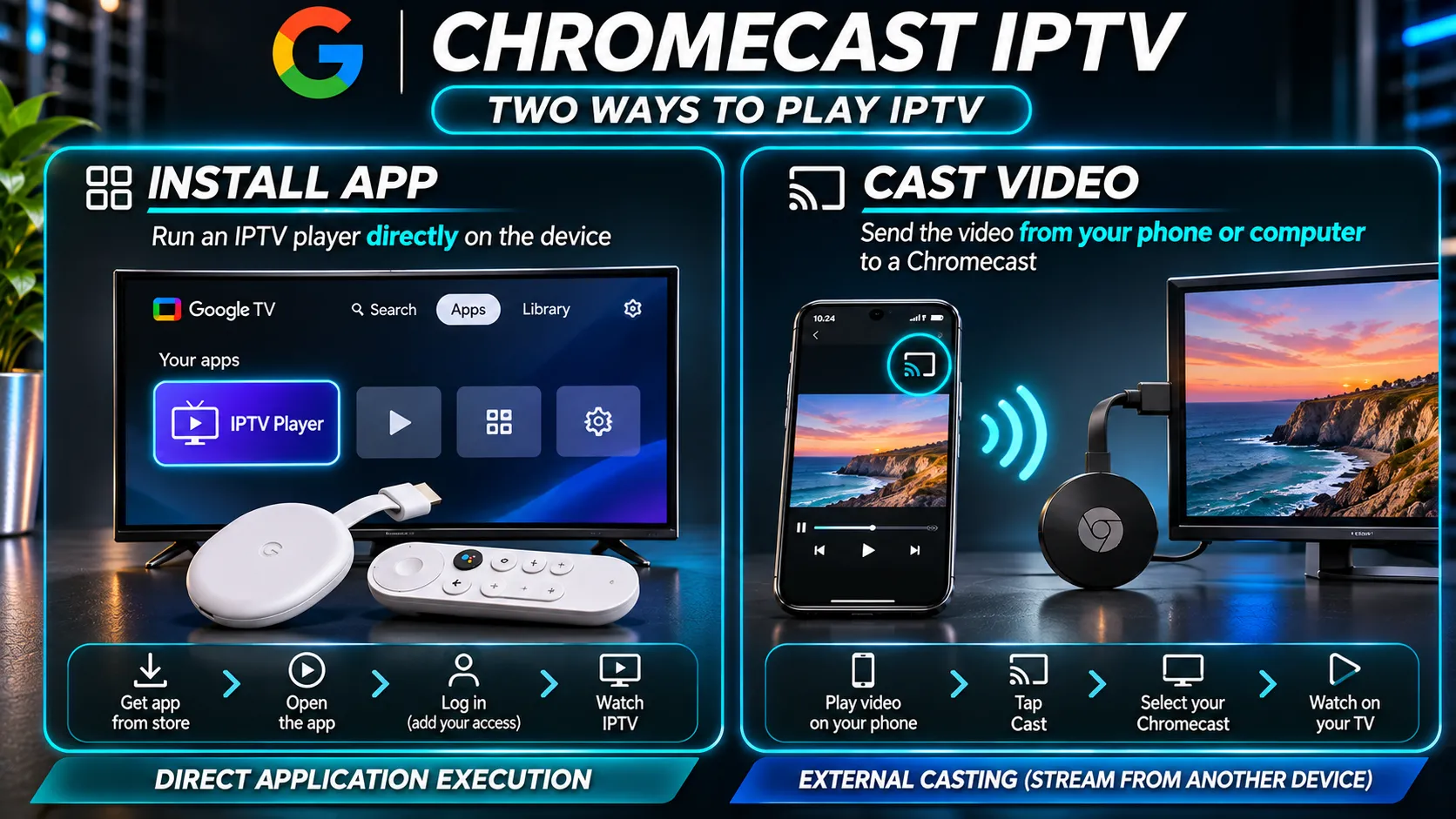
Every Chromecast IPTV setup uses one of two methods. The first is installing an IPTV player directly on a Chromecast with Google TV or Google TV Streamer, which then runs on its own like any other TV app.
The second is casting: an app or browser on your phone, tablet or computer sends the stream to the Chromecast, which displays it.
Installed apps work only on Google TV models. Casting works on every generation, including the newest ones.
If you own a Google TV model, the installed-app method is usually the more practical day-to-day choice, because your phone stays free and the TV remote controls everything.
Method 1: Install an IPTV Player on Chromecast with Google TV
On a Chromecast with Google TV or a Google TV Streamer, the basic process is short:
- On the home screen, open Apps and search Google Play for an IPTV player.
- Install the player you have chosen.
- Open it and enter the connection details your provider gave you.
Note: An IPTV player is only a player. It contains no channels and no subscription. What it plays depends entirely on the service details you enter, and that service is what determines whether your viewing is licensed.
See Is IPTV Legal in Canada? for what that means in practice.
Choosing a player, and entering an M3U link or Xtream Codes login, work the same way on Google TV as on any Android TV device.
Our Best IPTV App Canada comparison covers the player choice, and What Are Xtream Codes? explains the two login formats.
Method 2: Cast IPTV From a Phone or Computer
Casting is the only option for older Chromecasts, and an optional one on Google TV models. There are three distinct ways to do it, and they do not perform the same.
Casting From a Compatible App
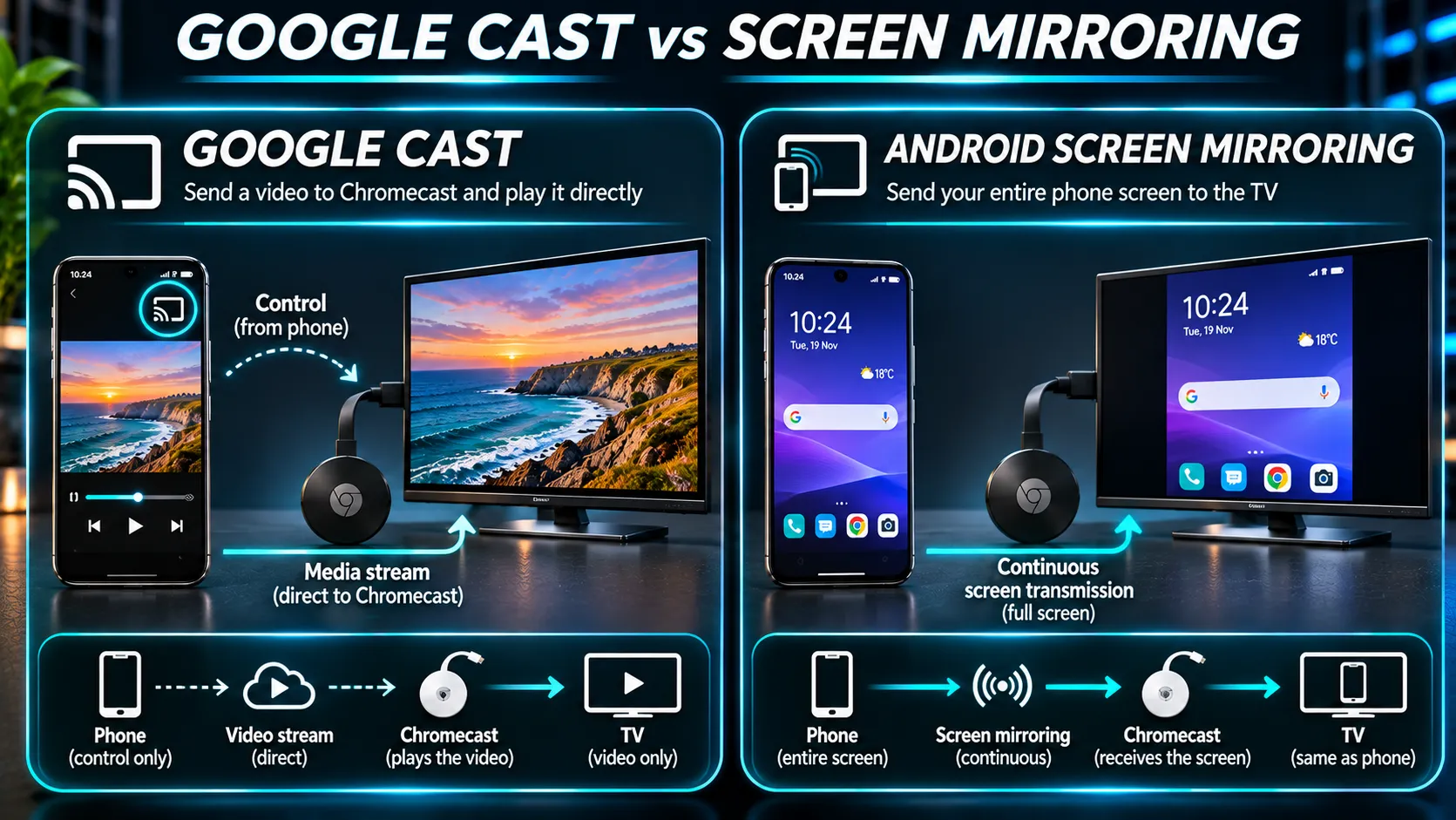
When an app supports Google Cast, it shows the Cast icon. Tapping it sends the video stream itself to the Chromecast, which then fetches and plays it, while your phone acts as a remote.
With supported Google Cast playback, you can usually lock your phone while the video continues on the TV. Screen mirroring works differently and may stop when the phone is locked.
The key limitation: not every IPTV app on a phone supports Google Cast. Having an IPTV player on your phone does not mean it can cast. If no Cast icon appears in the app, that app cannot use this method, and you would need a different player or screen mirroring instead.
Screen Mirroring From Android
Screen mirroring sends a copy of your entire phone screen to the TV rather than just the video.
According to Google’s screen-casting instructions, you start it from the Google Home app, the feature is only available on devices running Android 8.0 or later, and your phone must be on the same Wi-Fi network as the Chromecast.
Mirroring works with almost any app, including IPTV players with no Cast support. The trade-off is that your phone has to capture and send the screen continuously, so the phone must stay on, it uses more battery, and picture quality can be lower than with app casting. Google itself suggests turning on battery saver for longer screen casts.
Casting From a Computer
In the Chrome browser on a computer, the Cast option in the menu can send either the current tab or the whole screen to a Chromecast. That is mirroring: the computer captures what is on screen and sends it.
A website or web player that supports Google Cast behaves differently. It sends the media itself to the Chromecast, which plays it directly, just as a compatible phone app does.
If a web-based IPTV player offers a Cast button inside its own video player, that direct method is generally the better choice than casting the whole tab.
| App or website casting | Screen mirroring | |
|---|---|---|
| What is sent | The video stream | A copy of the whole screen |
| Needs Cast support in the app | Yes | No |
| Can the sender screen be locked? | Usually, with supported Cast playback (varies by device and app) | No — the sending device must stay on and unlocked |
| Battery use on the phone | Lower | Higher |
| Picture quality | Depends on the stream | Can be reduced by screen capture |
Chromecast Discontinued: Does IPTV Still Work?
Yes, as long as the device itself keeps working. In August 2024, Google announced that the Google TV Streamer replaces Chromecast and that it was ending Chromecast production.
Ending production means no new units are made. It does not switch off the devices already in people’s homes.
Software support is a separate question, and it varies by generation. Google’s firmware release notes page states that support for the 1st-generation Chromecast has ended, meaning it no longer receives software or security updates and Google does not provide technical support for it.
The same page, checked 20 November 2026, lists the latest Chromecast with Google TV (4K and HD) firmware with an October 2025 Android security patch level.
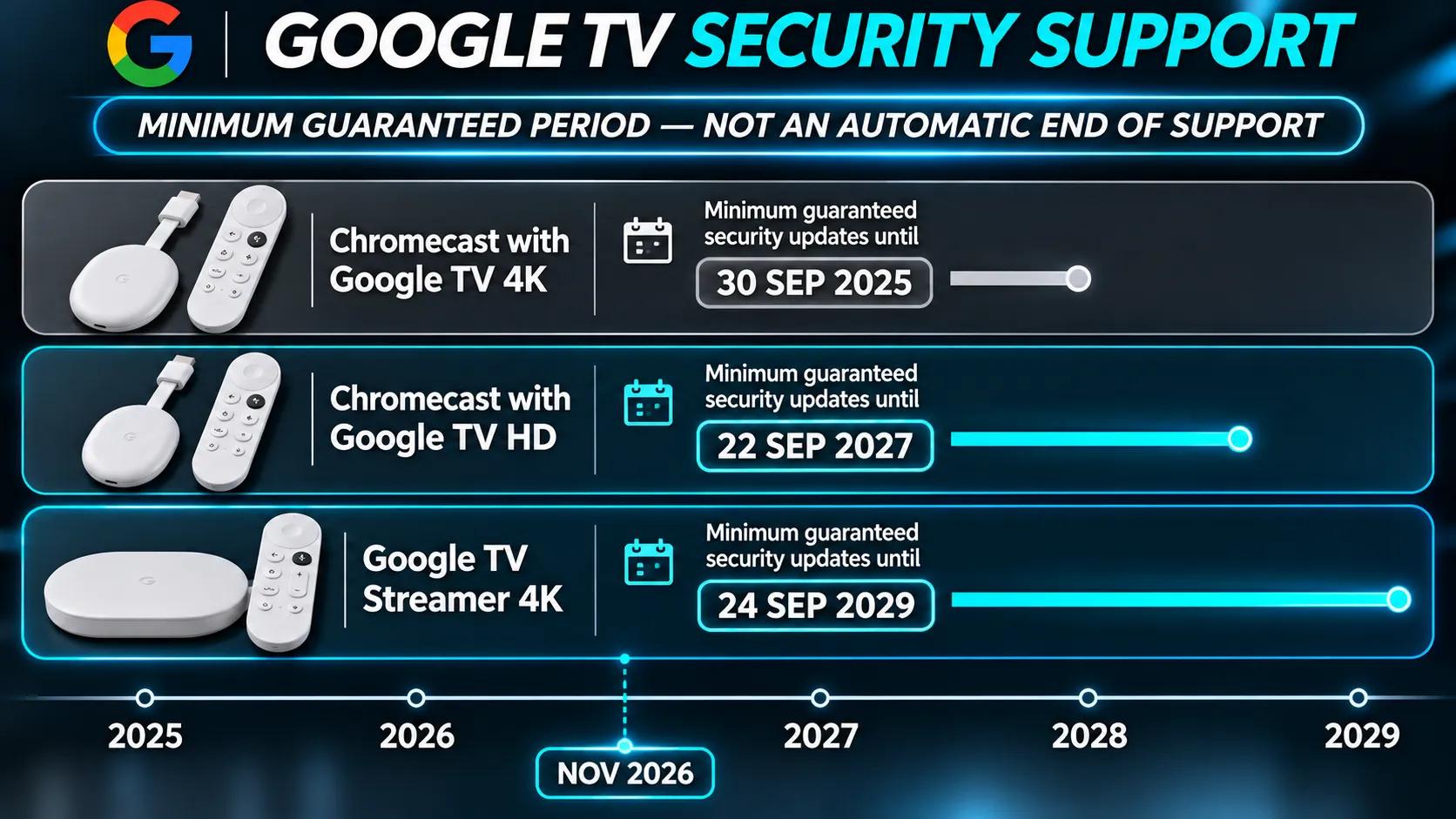
Google also publishes minimum security-update dates for its devices: at least five years from the date each one first went on sale on the US Google Store. On that page:
- Chromecast with Google TV (4K): minimum period ran to 30 September 2025
- Chromecast with Google TV (HD): minimum period runs to 22 September 2027
- Google TV Streamer (4K): minimum period runs to 24 September 2029
A minimum date is a guaranteed floor, not an end date. The 4K model passed its minimum date and still received an update in late 2025. But past that date, Google is no longer committed to further updates, and no one can say how long they will continue.
For IPTV specifically, the practical risk of an unsupported device is gradual: apps can stop supporting old software versions over time.
A device that works today can keep working, but it is less likely to keep up with app updates.
Is a Used Chromecast Worth Buying for IPTV?
Used Chromecasts are widely available, but price alone is the wrong test. Judge a used unit on four things: which generation it is, its documented support status, whether it runs the apps you need, and how its price compares with a current device.
Chromecast (1st gen):
support has ended, so it is the one generation with a documented reason to avoid it for a new setup.
Other casting-only models:
these can still receive casts, but they depend on your phone or computer for every session and cannot run an IPTV player of their own. They suit occasional casting better than daily live TV.
Chromecast with Google TV (HD):
still within Google’s minimum security-support period until September 2027, and it runs IPTV apps directly. Before buying, confirm the player you want is available for it.
Chromecast with Google TV (4K):
it still runs IPTV apps, but its minimum guaranteed support period has ended, so weigh a low price against the uncertainty about future updates.
Google TV Streamer:
the current model, with the longest documented support window of the three Google TV devices and a built-in Ethernet port for a wired connection. If you are buying new rather than used, it is the direct replacement.
If you are open to other platforms, our Best IPTV Device Canada guide compares Google TV devices with Fire TV, Apple TV, NVIDIA Shield and dedicated IPTV boxes such as Formuler.
Chromecast IPTV Not Working? Common Problems to Check
Most Chromecast IPTV problems come from a small set of causes. Check these first.
The Chromecast does not appear in the Cast list.
Casting only works when your phone or computer and the Chromecast are on the same Wi-Fi network. Make sure both devices can communicate on the same local network.
Guest-network isolation, router settings or separate network segments can prevent discovery, even when both devices have internet access.
There is no Cast icon in your IPTV app.
The app does not support Google Cast. Use screen mirroring, a different player that supports casting or, on a Google TV model, install a player on the TV itself.
The stream buffers or stutters.
On casting-only models, the Chromecast is pulling the stream over Wi-Fi, so signal strength matters. With screen mirroring, your phone’s Wi-Fi connection is also part of the chain.
A Google TV Streamer connected by Ethernet avoids the Wi-Fi link altogether. Our IPTV buffering guide covers the network causes in detail.
Audio plays but the video does not, or the stream fails to start.
The stream format may not be supported by the Chromecast or by the app’s player. If the player offers an alternative playback engine or hardware/software decoding option, try changing that setting and testing the stream again.
These options vary by app and may not resolve every playback failure. If the problem is not specific to Chromecast, work through IPTV Not Working in Canada.
Bottom Line
Chromecast IPTV comes down to which model you have. A Chromecast with Google TV or a Google TV Streamer can run an IPTV player directly, which is the simplest setup for regular viewing.
Older Chromecasts can only receive casts, either from an app that supports Google Cast or by mirroring a phone or computer screen.
Google has stopped making Chromecast, but existing units still work; what differs between them is software support, where the 1st generation has ended and the Google TV models have documented minimum dates.
If you are buying today, choose by support status and app compatibility rather than price alone.
Explore More
Sources
- Google — Google TV Streamer: Our new entertainment and smart home hub (6 August 2024)
- Google Support — Chromecast & Google TV Streamer firmware versions and release notes (checked 20 November 2026)
- Google Support — Security updates and security validation results for Google Nest devices (checked 20 November 2026)
- Google Support — Cast your Android screen from the Google Home app