
IPTV no sound is the one fault where the standard advice list does the most damage, because it treats a three-part problem as a single one. Audio has to survive three separate stages between the stream arriving and the room hearing it, and each stage fails in its own way.
Turning things off and on again occasionally lands on the right stage by accident. Knowing which one broke takes about a minute. If the picture is failing too, our complete IPTV fix guide for Canada is the better starting point.
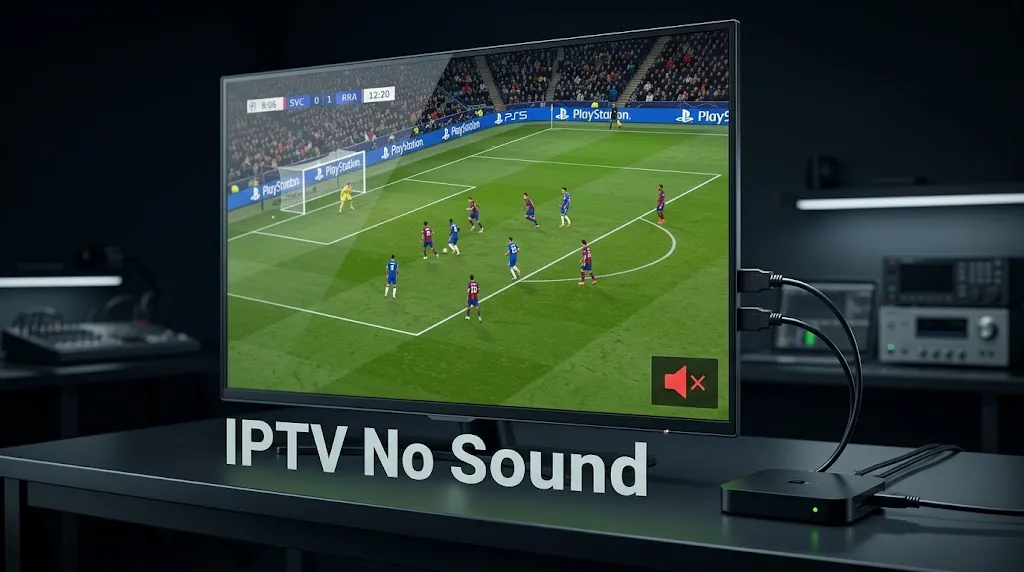
Quick answer: If the picture plays and the sound does not, ask one question first — is it every channel or only some? Every channel: start with the player’s own volume and your output path, then check the audio decoder settings. Only some channels: that points strongly at differences in the audio format between channels, and the fix is in your player’s audio decoder.
What a Working Picture Already Proves
A playing picture is evidence, and it is worth spending ten seconds on what it establishes.
What This Rules Out
Video and audio travel together inside the same stream. If the video is playing, the audio data is arriving with it — what remains uncertain is whether your device and player can decode it and pass it to your speakers.
That narrows things considerably: the connection is carrying the stream and your player is rendering it. Whatever is wrong is happening to the audio after it arrives, not before.
This is the reverse of the situation in our guide to IPTV black screen, where sound survives and the picture does not. Same stream, opposite half missing, and a different set of causes.
The One Question That Narrows It Fastest
Before touching a setting, try three or four different channels.
Every channel is silent. The problem is not specific to one audio format. Start with the player’s own volume and your output path — layers one and three below — then come back to the decoder settings if neither explains it.
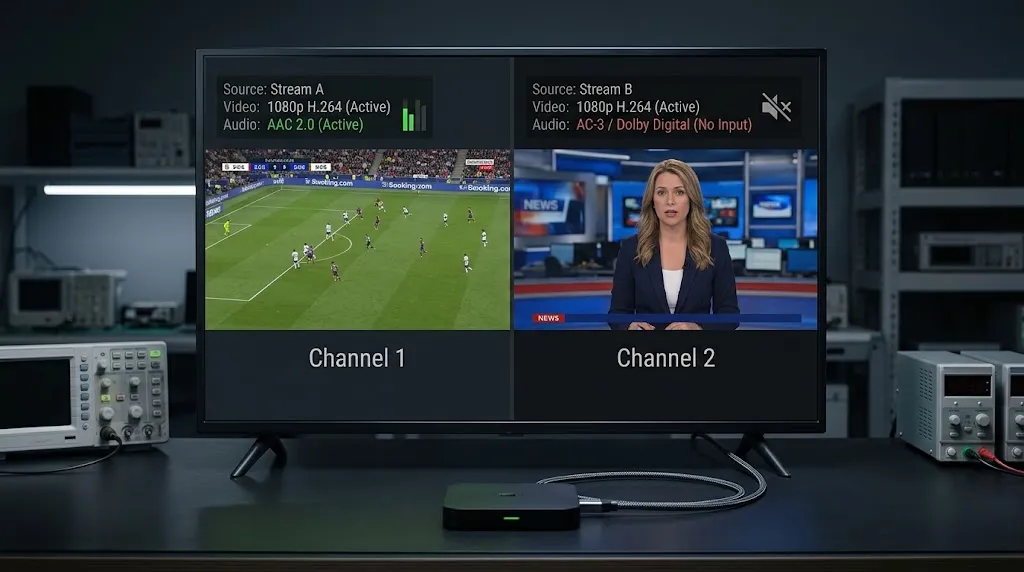
Some channels have sound and others do not. This points at a difference between the channels themselves, which means layer two. Nothing about your speakers or cables changes from one channel to the next.
That single test skips most of a troubleshooting list.
Layer One — The Player’s Own Volume
Many IPTV players carry an internal volume control that is separate from your television’s, and separate again from your streaming device’s system volume.
It is adjusted with the same remote buttons. Hold the volume-down button while a channel is playing, and some players will lower their own level to zero while the television’s volume indicator sits comfortably in the middle. Everything looks correct and nothing is audible.
Why This Is Missed So Often
The evidence contradicts itself. Your television reports volume at 40. The channel is playing. So the player’s own silent level is the last thing anyone suspects — and it happens most often in households where a child or a guest has held a button down without noticing.
Press and hold volume-up with a channel playing and watch for a second volume indicator, usually drawn by the app rather than the television. If one appears, that is your answer. Ten seconds, and a layer ruled out.
Layer Two — Audio Decoding and Format Support
This is where the “some channels but not others” pattern lives.
Why Audio Support Varies Between Devices
Channels do not all use the same audio format. Some carry Dolby Digital — AC-3, or its successor Enhanced AC-3 — and others carry AAC or something else. What matters is that these formats are not supported identically across every device and player.
Android’s own supported media formats documentation states that media format support may vary by device form factor, and that a particular device might support formats beyond those listed. Apple documents Dolby Digital and Dolby Digital Plus playback on Apple TV in its own technical note rather than treating it as an assumed capability.
That variation is the explanation. A player that handles one format without difficulty can produce complete silence on a channel using another, while the picture continues perfectly — because the video decoder and the audio decoder are separate components.
It is worth noting how this differs from the video side. There, the limit is what a chip can process. Here, the limit is which audio formats a given device or player implements — and that varies in ways a specification sheet rarely makes obvious. Our best IPTV device in Canada guide covers what to check before buying.
Switching the Audio Decoder
Most players offer a choice, usually in playback or advanced settings, labelled something like audio decoder, alternative audio decoder, or hardware and software decoding.
Hardware decoding hands the work to dedicated components on the device. Software decoding does it on the general-purpose processor, using code shipped inside the app rather than capability built into the device — which is why a player can succeed in software where it failed in hardware.
If your silent channels start playing after this change, you have found the layer. The cost is modest: software decoding uses more processing power, and on a very modest device it can introduce stutter on high-bitrate channels.
Passthrough — and Why It Cuts Both Ways
Passthrough is the setting most often recommended for this problem, and the one most likely to create a new one.
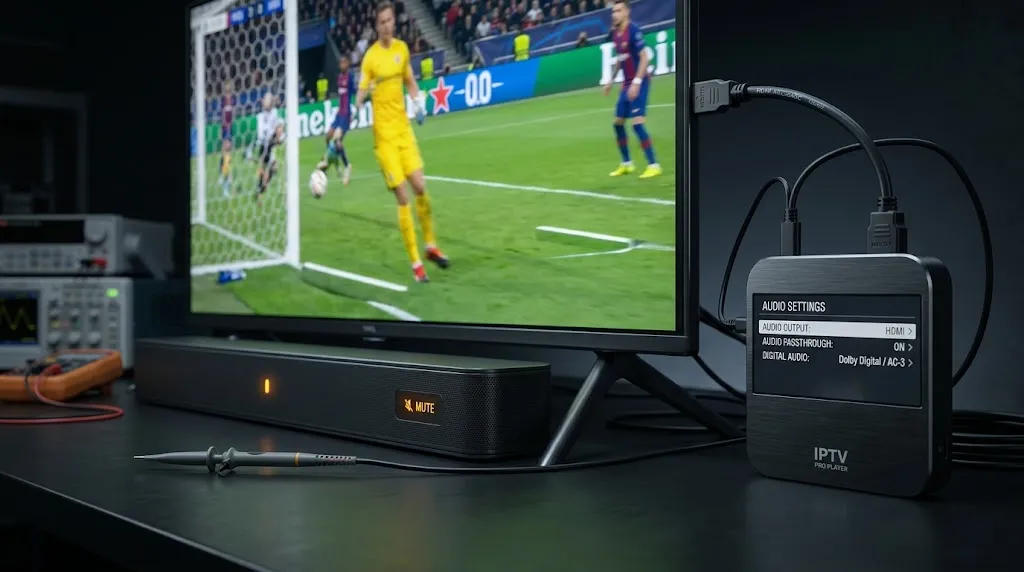
With passthrough enabled, the player stops decoding the audio and sends the compressed stream onward to your television, soundbar, or receiver to handle. When your player cannot decode a format but your sound system can, this works — you have routed around the obstacle.
When nothing further down the chain can decode it either, you have moved the failure rather than fixed it. The audio now arrives somewhere that cannot use it, and the result is the same silence with a different cause.
So the honest instruction is not “enable passthrough.” It is: try software decoding first, because it resolves the problem inside the player. Try passthrough second, and only if you have a sound system that handles the format. If passthrough makes things worse, turn it off — that result is information, not a failure.
Layer Three — Output to Your Television or Sound System
The last stage is physical, and it is the one to check when every channel is silent rather than some.
When a Soundbar or Receiver Is the Obstacle
If your audio runs through a soundbar or an AV receiver, that device is part of the chain and can break it on its own.
The most common version is passthrough-related: the player is sending a compressed stream, and the device receiving it either does not support that format or is not configured to accept it over the connection in use. Disabling passthrough in the player — so it decodes the audio itself and sends plain stereo — is the quickest way to test this. If sound returns immediately, the receiving device was the obstacle, and the fix belongs in that device’s settings rather than in your IPTV player.
Worth separating from the rest: this failure is not IPTV-specific. If a licensed streaming app on the same device is also silent through the same sound system, the problem was never your IPTV setup at all.
The HDMI Check
Reseat the cable at both ends and try a different port. A partially seated HDMI connector can carry video while dropping audio, and it costs a minute to rule out.
If your television has an ARC or eARC port and your sound system is connected to it, confirm you are using the correct port at both ends. It is a common oversight after moving equipment.
Reading IPTV No Sound by Pattern
The pattern tells you the layer.
| What you observe | Most likely layer | What to try |
|---|---|---|
| Every channel silent, television volume normal | Player’s own volume | Hold volume-up during playback, look for a second indicator |
| Some channels silent, others fine | Audio decoding | Switch to software decoding, then consider passthrough |
| Silence began after enabling passthrough | Output path | Disable passthrough and let the player decode |
| Silence through a soundbar, sound from TV speakers | Output path | Disable passthrough, check the sound system’s input settings |
| Other apps are silent too | Output path or device | Not an IPTV problem — check the device and the connection |
| One channel silent, dozens fine | Possibly that channel’s audio feed | Test the same channel in a second compatible player |
A note on that last row. Test the same channel in a second compatible player. If it is silent there too while other channels play normally in both, the problem may be with that channel’s audio feed rather than with your setup. Our comparison of IPTV apps for Canadian viewers covers players that accept the same credentials.
This article covers player and device diagnostics only. IPTV Concepts does not sell or endorse any subscription service. See our disclaimer for the limits of what any of this represents.
Bottom Line
IPTV no sound is three problems wearing one symptom, and the picture that keeps playing is what narrows them. The audio data is arriving with the video; what is uncertain is what happens to it afterwards.
Ask whether it is every channel or some. Every channel points first at the player’s own volume and your output path. Some channels points at how different audio formats are handled on your particular device — and the fix is in your player’s audio decoder rather than in your cables, your subscription, or your internet connection.
One boundary worth keeping. This guide covers audio that is absent. Audio that is present but out of sync, or that cuts in and out during playback, are different faults with different causes. A picture that will not appear at all is covered in IPTV black screen, and content that never starts in IPTV VOD not working. For anything broader, return to IPTV not working in Canada. If something here needs correcting, our contact page is open.
Sources
- Supported media formats — Android Developers. Platform media format support, and the statement that support may vary by device form factor. Accessed September 2026.
- Technical Note TN2429 — Apple Developer. Apple TV playback of Dolby Digital (AC-3) and Dolby Digital Plus (Enhanced AC-3) audio. Accessed September 2026.